Access and your network
Trusty Track runs on one machine at your venue and serves everything else over the local network. That is what makes it work without internet — and it means anyone who can reach that network can reach the app.
By default, so can anyone who wants to change it.
What the risk actually is
Not hackers. A pack meeting is a room full of children with phones, and the address is on the projector. Without a PIN, anything the operator can do, anyone in the building can do — including deleting the race in the middle of it.
Setting a PIN takes about ten seconds and removes essentially all of that.
The three kinds of screen
Trusty Track decides what a screen may do from the PIN it holds, not from who is using it. There are three:
| Holds | Can | |
|---|---|---|
| Displays | nothing | watch the race — standings, the live heat, timing |
| Check-in desk | the check-in PIN | add and edit racers, check them in, take photos |
| Operator | the operator PIN | everything |
A display needs no setup at all. Point a browser at the address and it works, which is the behavior you want on a screen taped to a wall. Exactly what each role can and cannot do is in Roles and permissions.
Setting the PINs
Settings → Access.
- Operator PIN — required for the rest to mean anything. Setting it is what turns access control on.
- Check-in PIN — optional. Worth setting if the registration desk runs on a device of its own: that device can add racers and check them in, and nothing else, so a tablet left on the table cannot delete a round. The Access panel says as much beside the box.
Tip
Pick something you will not have to think about at 8am. It is protecting the race from a bored ten-year-old, not from an attacker.
Leaving both blank keeps the old behavior: no PIN, no restrictions. That is deliberate, so upgrading between events never locks you out of your own race.
Entering a PIN on a device
A padlock appears in the header once a PIN is set. Click it, type the PIN, and click Unlock. Trusty Track checks it with the server first — a wrong PIN keeps the dialog open with That PIN is not right and remembers nothing. Only once the server has confirmed the PIN does the device store it.
Each device is separate — your laptop holds the operator PIN, the check-in tablet holds the check-in one, and the displays hold nothing. Click the open padlock to make a device forget its PIN again.
Note
The page reloads once a PIN is accepted. That is expected: the live connection has to be re-established with the new credential.
Changing or removing a PIN
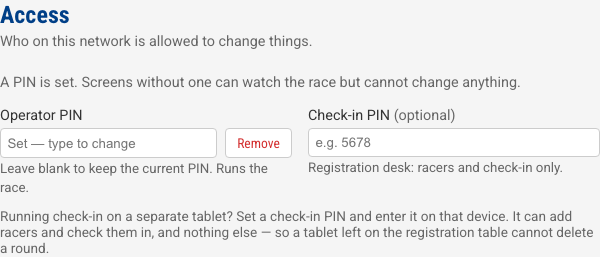
Settings → Access. Type a new PIN over the old one to change it — you do not need the old one, and leaving the box blank keeps whatever is set rather than clearing it.
To turn a PIN off, click Remove beside it and then Save Settings. The box grays out and says what will happen; Keep puts it back if you change your mind before saving.
If you forget the operator PIN
There is no "forgot PIN" button, and nobody can remove it from inside the app without the PIN they are trying to recover — not from another device, and not by sitting down at the machine itself. Write the PIN somewhere durable before race day; that is cheaper than the alternative.
If it does happen, there is a way back in, but it is technical — editing the database file directly, not clicking anything in Trusty Track. See If you forget the operator PIN for the exact steps.
Finding this machine's address
A display, a check-in tablet, or a phone voting on an award all need the same
thing: an address that opens Trusty Track from another device, not just the
one it is running on. The address in your own browser's bar can be the wrong
one to hand out — on the machine running Trusty Track, it is often
http://localhost:8000, which names that machine to itself and nothing else
can open.
Try the name first: trustytrack.local. Trusty Track advertises itself
under that name on the local network — on the same http:// or https://
and :port your own browser's address bar shows, so if yours shows
https://localhost:8000, try https://trustytrack.local:8000 on the other
device. It works out of the box on Windows 10 and later, macOS, iOS, and
Android 12 and later, with nothing to install.
Note
Two things can stop this. Some school or guest networks block the kind of
broadcast this relies on (the same networks that isolate devices from each
other, already flagged below) — the address below is what those need. And
a phone running Android 11 or earlier cannot resolve a .local name at
all, whatever the network allows.
If that does not work, or for setting up a device that needs a plain IP address, the address is whatever this machine's own network settings say:
Note
Windows: open a command prompt and type ipconfig — look for "IPv4
Address". Mac: System Settings → Wi-Fi → Details. Raspberry Pi: type
hostname -I at a terminal. On any of them, it looks like
192.168.___.___ or 10.___.___.___. The full address to type into another
device's browser is that, with the same http:// or https:// and :port
your own browser's address bar shows for Trusty Track — for example
http://192.168.1.42:8000 if yours shows http://localhost:8000.
Two places in the app offer to hand out an address for you, with a Copy
button and a QR code, rather than making you type either form above:
Displays, for connecting a wall display or a check-in tablet, and
the voting page's sharing step (see
Letting people vote). Both show the .local
name whenever Trusty Track successfully registered one, and fall back to the
IP form otherwise — the same choice you would make by hand above, made once
so you do not have to check whether it worked.
If you use the macOS or Windows desktop app, its menu-bar/tray icon shows the
same .local address next to the plain network one, once the server has
finished starting.
Which network to use
In rough order of preference.
A dedicated access point. A cheap travel router, not connected to anything else, with the Pi plugged into it. Nothing else is on the network, so the PIN is the second line of defence rather than the only one. This is also the most reliable option — see the note on wifi below.
Wired, where the screens allow it. Ethernet to the displays removes the single largest source of trouble on race day.
The venue's wifi. Works, and is what most packs will use. Set a PIN.
Warning
A school or church guest network often isolates clients from each other, so the displays cannot reach the Pi at all. Test this before the event, not on the morning.
About wifi and the displays
The audience displays hold a live connection to the machine running Trusty Track. If wifi drops, they reconnect on their own and catch up — that is handled, and they will keep retrying for as long as it takes rather than giving up.
What they cannot do is show a race they cannot reach. If the displays matter to your event, a dedicated access point is worth the twenty pounds.
Streaming your event with OBS Studio
Packs with a deployed parent, an out-of-town grandparent or a sick scout at home have been streaming derbies on YouTube, Facebook Live and Twitch for years. Trusty Track has a display view built for it: Broadcast overlay, a transparent graphic your streaming software composites over your camera feed — a lower-third bar naming the current heat and its line-up, a compact standings ticker, and a banner that reveals each heat's result. What it shows is covered in full at Audience display views; this is how to put it on your stream.
OBS Studio is free and is what these steps assume, but any streaming program with a "Browser Source" — one that can show a web page, with a transparent background, inside your scene — will do the same job.
- Find this machine's address the same way you would for a display or a check-in tablet.
- In OBS, add a Browser Source to the scene with your camera feed in it.
- For the URL, take the address from step 1 and add
/race/<your race's number>/observation?view=overlayto the end of it — for examplehttp://192.168.1.42:8000/race/3/observation?view=overlay. Your race's number is in the address bar when you have that race open in Trusty Track. - Set the source's width and height to match your canvas (1920×1080 for a standard stream), and leave Shutdown source when not visible and Refresh browser when scene becomes active both unchecked — the overlay holds a live connection the same way a display does, and either box would needlessly drop and reopen it every time you switch scenes.
- Position the source wherever you like in the scene. Nothing about the overlay's own layout depends on where OBS puts it.
No PIN needed, and none of your streaming details ever reach Trusty Track. A Browser Source is a display, the same as a screen taped to a wall — it can be watched, not driven — so it needs no credential, and Trusty Track has no idea it is being streamed anywhere at all.
Turning the standings ticker off, or choosing which page it opens, without touching OBS again. Once the source is added, the overlay shows up in Displays the same as any other screen — find it in the list (it will have picked its own name, like every display does) and use its row to switch the ticker on or off. You never need to re-enter the URL in OBS for this; the running Browser Source picks up the change live.
What is not protected
Being straight about the limits:
- Reading is open to everyone, by design. Anyone on the network can see the standings, the roster and the live heat. That is what a display is.
- Traffic is not encrypted, and there are no user accounts — one shared PIN per role, which is the right size for a pack derby. The honest detail is in Roles and permissions.
The activity log
Settings → Activity log, or /activity.
Every operation anyone performs is recorded: what it was, when, which role did it, and — kept out of the way until you ask for it — which device. It is the answer to "who deleted that round", which until now had none.
A ← Back to settings link sits top-left, the same one Timer check carries — this page is only ever reached from Settings, so one click returns you there rather than to whichever race you happened to have open in another tab.
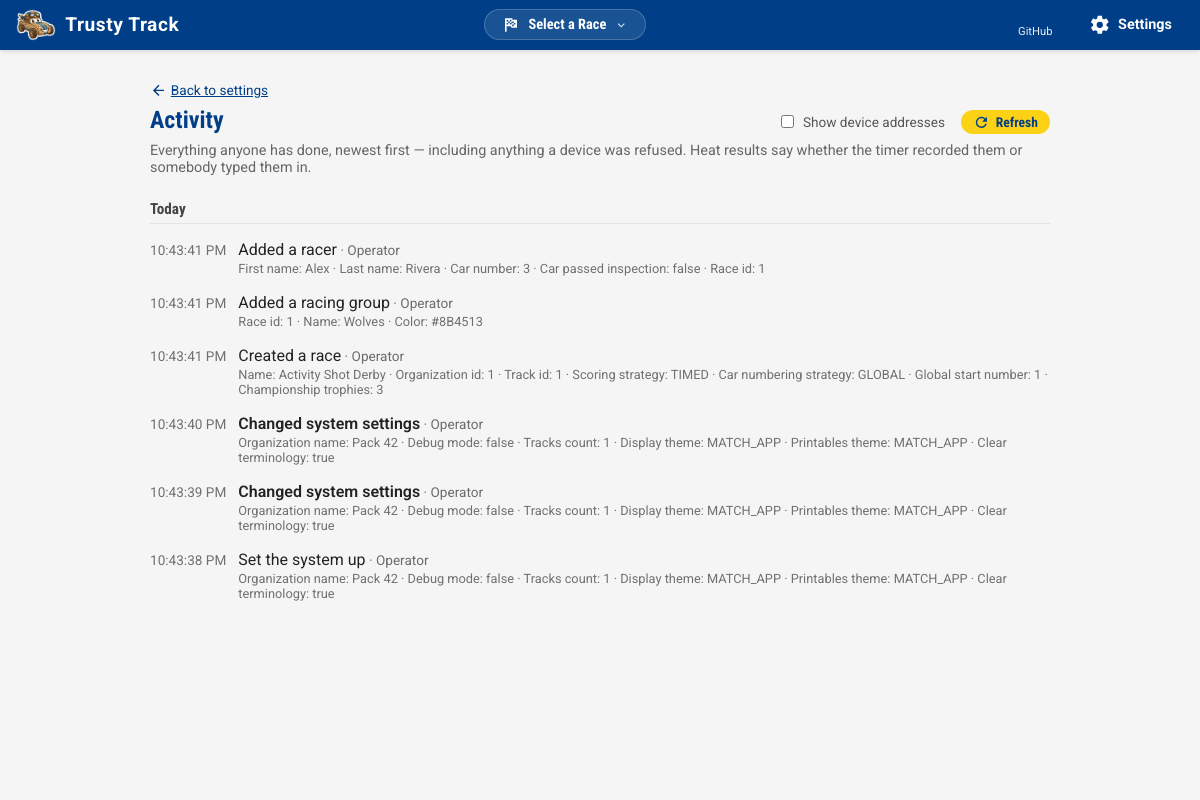 The timeline, newest first. Each line carries the time, what was done, and which role did it; the details beneath name what it was done to.
Six chips narrow the timeline to one subject — Results, Schedule, Roster & check-in, Awards & voting, Displays & room, Setup & system — all selected by default, so nothing is hidden until you deselect one. A Noteworthy only checkbox beside them keeps destructive or wide-reaching actions and anything that did not succeed, and drops the rest — the same "scanning for what went wrong" case the red refusals below already serve, narrowed further. Both filters are applied on the server, over the whole log rather than only the page already on screen, so Load older entries keeps paging through matching rows rather than running out early. Changing either chip or the checkbox starts the timeline back at its first page, the same as switching which race you are filtered to.
Five things worth knowing:
- Heat results say how they arrived — recorded by the timer, or entered by hand. That is the distinction a disputed time turns on.
- Refusals are recorded too, in red, and say why — a role limit reads differently from the same attempt refused by the public demo or by a locked race, though nothing was deleted any of the three ways.
- No PIN is ever written down.
- Load older entries at the foot of the page reaches further back than what is shown at first, honouring whatever chips or the Noteworthy checkbox are currently on.
- A category comes from the action alone — the same lookup the chips themselves read from — so old entries categorise retroactively, with nothing to re-run.
Live keeps the page current on its own, for watching a race in progress on a second screen. It is off by default and remembered on this device — flip it on and new entries appear as a N new entries chip rather than the page jumping while you are reading, so scrolling down or loading older entries is never disturbed; click the chip to bring them in. The count only ever includes entries the current chips and Noteworthy checkbox would actually show — an entry filtered out never inflates it. Filtered to one race, Live watches that race; with no race filter it watches every race on the install. Off, the page is exactly what it always was — click Refresh for anything that happened since you opened it.
The log is operator-only. The rest of the rules — how long it keeps, what survives a race deletion — are in Roles and permissions.