Connecting a Hardware Timer
Trusty Track can read finish times directly from an electronic finish line, so nobody has to watch the lanes and write times down.
If you want to try the software first, use the Fake Timer instead. If you genuinely have no timer for race day, set the track's Timer Type to No timer rather than Fake — see No timer.
Tip
Do this the week before the derby, not ten minutes before the first heat. The whole page below exists so that a problem surfaces on your bench, with time to fix it, rather than at the track with a queue behind the gate.
The short version
For most people, connecting a timer is four steps:
- Plug the timer's USB cable into the machine running Trusty Track.
- In Settings → Tracks, set the track's Timer Type to Plugged into this machine. Leave Serial Port blank.
- Open System Settings → Timer check.
- When it says Ready, you are done.
Everything else on this page is for when that did not work, or your setup is different: the timer plugs into your laptop instead of the machine running Trusty Track, your model has to be picked by hand, your track has a remote-controlled start gate, or a lane dies on the morning of the event.
Which timers work
Thirteen models, led by the Micro Wizard K1 / K2 / K3 — the timer Trusty Track has been built against. Ten of the thirteen are found automatically; the NewBold family, the Derby Magic at 9600 baud, and the FastTrack P-series have to be picked by hand. The full list, and how well each has been tested, is in the timer reference.
Warning
None of these has run a real heat on real hardware yet — including the Micro Wizard. If you own one, testing it and sending us the result takes about two minutes and is the most useful thing you could contribute.
Other models are not supported yet. Opening an issue naming the model, with its manual if you have it, genuinely helps.
Two ways to connect
Both are chosen per track in Settings → Tracks, on the track's card under Timer.
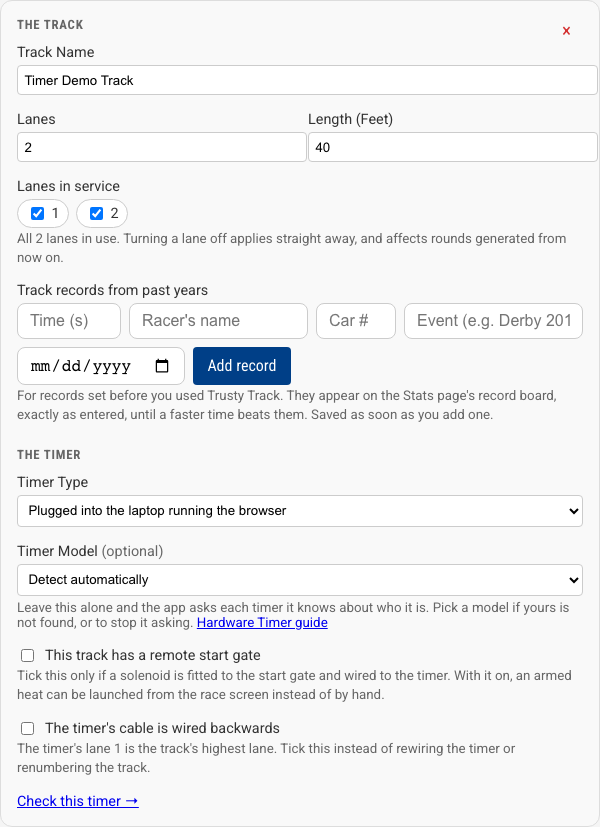 Everything about a track's timer lives on the track's own card in System Settings: how it connects, which model it is, whether a remote start gate is fitted, and whether its cable is wired backwards.
Plugged into the machine running Trusty Track
Plugged into this machine. The timer's USB cable goes into the machine running Trusty Track — typically the Raspberry Pi at the venue. This is the setup to prefer when you have the choice: nothing depends on which laptop is open or which browser it runs.
Leave Serial Port blank. When Trusty Track starts it checks each USB socket in turn, asks whatever is plugged in to identify itself, and connects to the one that answers. You do not need to know anything about ports or paths.
Fill the port in only if you have a reason to: a timer on a built-in serial port rather than USB, or a machine where you want to be certain which device gets used. A port you enter by hand is used exactly as you typed it — the app does not go looking elsewhere.
Plugged into the laptop running the browser
Plugged into the laptop running the browser. The timer's USB cable goes into the computer you are operating from, and the browser passes what it says along. Nothing extra to install.
Note
This uses the browser's Web Serial support, so it needs Chrome or Edge — Safari and Firefox do not have it.
The browser asks you to pick the serial port the first time. After that, the software identifies the timer exactly as it does when plugged in directly, so you do not have to tell it which model you have. If nothing recognisable answers, it takes about ten seconds to work through the models it knows before falling back to assuming a Micro Wizard.
Checking it works
System Settings → Timer check, or go to /timer-check.
This page shows every track's timer live: what state it is in, which device answered, and where it was found. You do not need a race set up to use it.
If you have more than one track, Settings → Tracks has a Check this timer link at the foot of each track's card, which takes you straight to that track's panel.
A link sits top-left to take you back where you came from. Reach this page from Settings — the nav link, or a track's own Check this timer link — and it reads ← Back to settings, one click back to the page you were on. Reach it instead from a race's own "Not ready to race yet" panel (its Check it link next to the timer row) and it reads ← Back to your race, returning you to that race rather than to Settings.
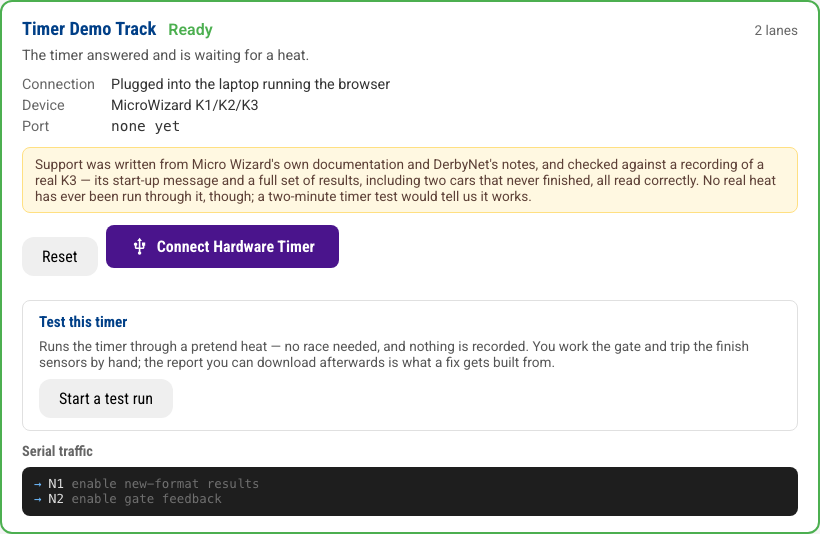 A healthy timer: Ready, the device it identified itself as, and — in the yellow note — how well that device's support has actually been tested.
Ready is what you want: the timer answered and is waiting for a heat. Not connected means check the cable, then search again — or, if the timer is plugged into your laptop rather than the machine running Trusty Track, press Connect Hardware Timer on the same page. Every other state the page can show is explained in the timer reference.
The scrolling text at the bottom
Beneath each timer, the page shows the conversation between Trusty Track and the device. You never need to read it. It exists so a problem can be sent rather than described — if the timer misbehaves, run the test below and download the report, and the conversation goes with it.
The one thing it tells you with no decoding: lines marked → are Trusty
Track talking, lines marked ← are the timer answering. Arrows going out
with nothing ever coming back means the cable or the port is wrong. More in
the timer reference.
The same log follows you onto the race screen: with Debugging Mode on (System Settings → Advanced), the Race tab docks it in the right-hand column during a heat, with a Timer State Machine panel — a live history of the timer's own state changes — directly beneath it.
When something goes wrong
Nothing is found. The timer check page says which ports it tried. Only USB ports are searched — a timer on a built-in serial port has to have its path entered by hand.
"Results overdue". The gate opened and the timer never reported a finish. The Micro Wizard gives up roughly ten seconds after the gate opens, so this usually means a car did not reach the finish line, or a lane sensor did not see it. Use Force Results on the race screen to make the timer report what it has, then enter anything missing by hand.
The times are recorded against the wrong racers. Stop and check the lane
numbering: lane 1 in Trusty Track must be the lane the timer calls A.
A heat was armed and then the schedule changed. The timer disarms itself and says so, rather than recording times against cars that have moved. Re-arm the heat and run it again.
The browser-connected timer suddenly says it is disconnected. With the timer plugged into the laptop running the browser, only one tab can be connected to it at a time — opening Race Control on a second device, or reloading the page, takes it over. The tab that lost it says so; reload it to reconnect, and make sure only one device is driving that timer at once. More in the timer reference.
Testing your timer and telling us
The timer check page can run your timer through a pretend heat — no race set up, nothing recorded anywhere — and then package everything that happened into a file you can send us. This is how a timer goes from "described from documentation" to "known to work", and it takes about two minutes:
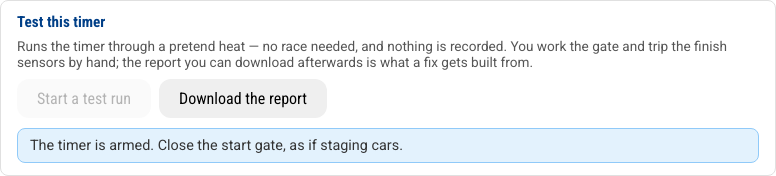 The test walks you through it one step at a time — here it is waiting for a hand on the gate.
- On the timer check page, press Start a test run under your track.
- Do what the page asks: close the start gate, open it, then trip each finish-line sensor by hand — a wave over each lane works.
- The times appear as the timer reports them. If a lane never fires, press Finish with what it has — a missing lane is worth reporting too.
- Press Download the report, then Report a problem, and attach the downloaded file to the issue that opens.
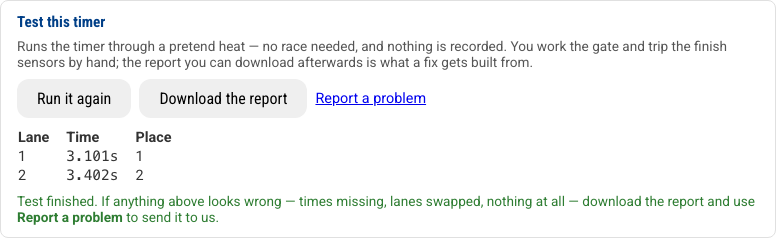 A finished test. If the times match what the timer's own display showed, it works; either way, the report is the thing to send.
The report holds the full conversation between Trusty Track and your timer, which is exactly what a fix is built from — often it can be turned into a permanent test, so the fix stays fixed. It contains nothing about your pack or your racers.
If the test looks right, that is worth a word too: "it works" moves a timer out of the untested column.
Choosing the model yourself
Most people never touch this. Leave Timer Model on Detect automatically. Pick one yourself only when:
- Yours is the NewBold family — it never announces itself, so the picker marks it must be chosen.
- You would rather the app did not send its short "who are you?" question to whatever is plugged in.
The setting sits under Timer Type, and only appears once you have chosen something other than the fake timer. The details are in the timer reference.
Launching a heat from the screen
Some tracks have a solenoid fitted to the start gate, wired to the timer. Where that is the case, a Release Start Gate button appears on the race screen once a heat is armed.
Two things have to be true first:
- The track has the hardware — tick This track has a remote start gate on the track's card in System Settings. Only tick it if the release is actually fitted.
- The timer model has a command for it. The Micro Wizard, the PDT and both Derby Magic profiles do; the other nine do not.
More in the timer reference.
Warning
This has not been tested against hardware, and it is the only part that moves something physical. Try it with an empty track before you try it with a queue.
If the timer's cable runs backwards
A finish-line unit is wired to its lanes in whatever order the installer plugged it in. If that order is the reverse of how the track itself is numbered — the timer's lane 1 is actually the track's lane 4 — every result lands on the wrong car.
Rather than rewiring the timer or renumbering the track, tick The timer's cable is wired backwards on the track's card in System Settings, under Timer. Every result from then on is flipped to match the track. More in the timer reference.
If a lane stops working
A sensor fails, a connector comes loose, and one lane of the track stops reporting. It happens, usually on the morning of the event.
Settings → Tracks → Lanes in service. Untick the lane on the track it belongs to, and every round you generate from then on is scheduled around it: the remaining lanes are used, everybody still races the same number of times, and the heats name the lanes that actually exist rather than renumbering them.
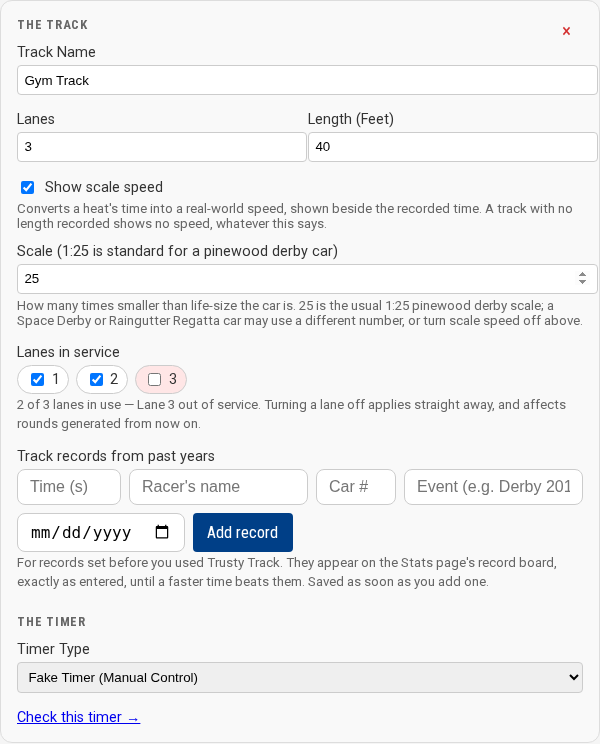
Unlike the rest of the track's settings, this applies as soon as you click it rather than when you press Save Settings — a lane going out of service is something that happens to you mid-event, not something you plan.
Tick the lane again when it is fixed, and the next round uses it. A track with no working lanes generates no schedule at all, and the settings page says so.
What happens to the round you are in the middle of
It depends on how far it has got:
- A round not yet started is rebuilt for the lanes that remain.
- A round part-way through keeps every completed heat; the dead lane is dropped from the heats still to come. In a points race that round is then left out of the standings, and the standings page says so.
- A finished round is left alone.
The full rules are in Changes in the middle of a race.