Printables
Trusty Track prints four things: pit passes, driver's licenses, check-in codes, and car labels for the impound pit. All four come off a normal printer on plain paper, card, or adhesive label sheets — there is nothing to install and no PDF to download.
Print before check-in opens. The whole roster is one job, and the sheets are laid out to be printed and then cut up.
Getting there
Open a race, click ⋯ at the top right of the roster, and choose Print….
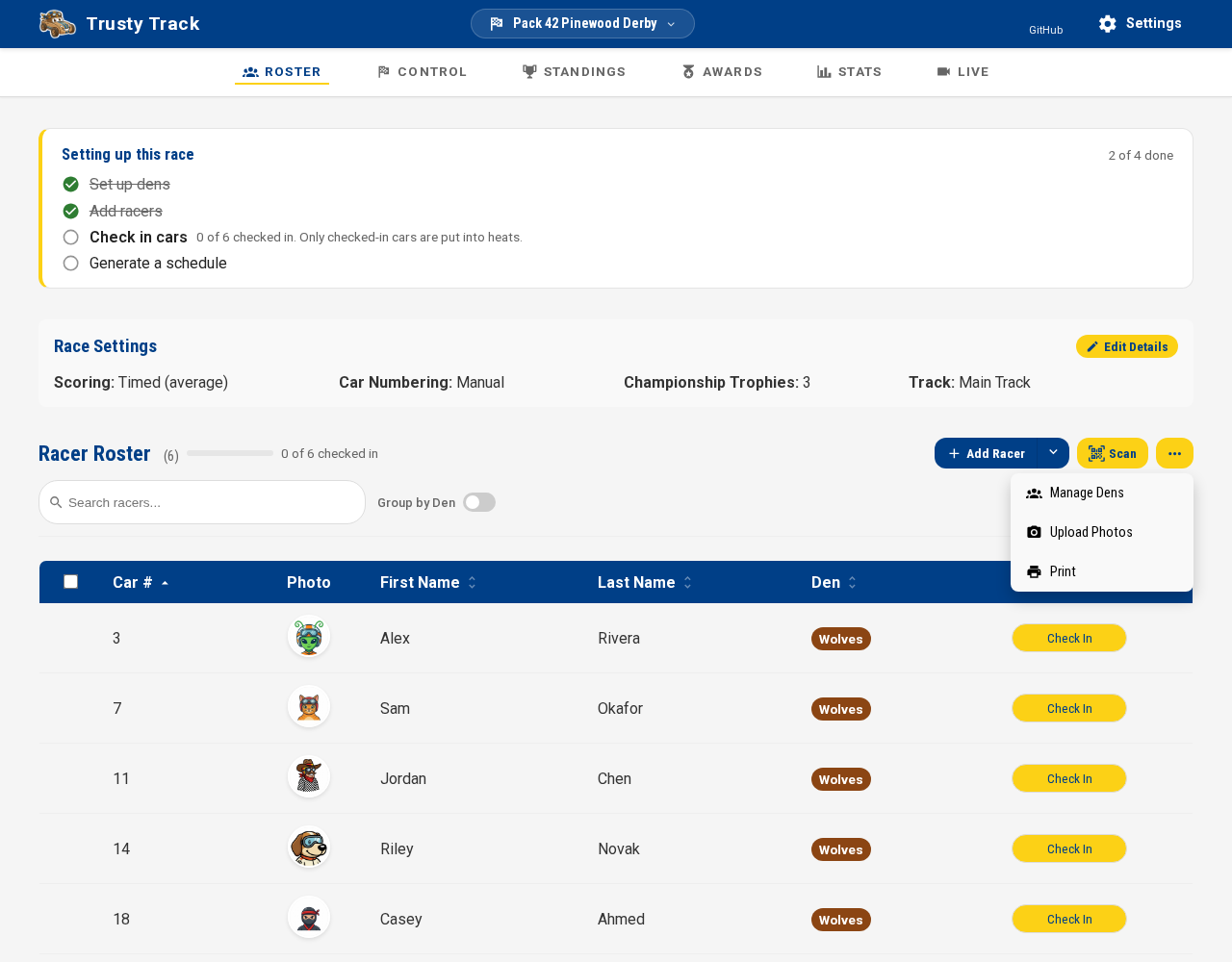
Tick some racers first and the button prints just those — useful when a den turns up late, or a scout registers on the morning. With nothing ticked it prints the whole roster.
That opens the print hub, which lists everything a race can print — not only the four cards below, but also the heat sheet, the results sheet and certificates, each a card that hands off to the page that actually owns it (described further down this guide, and each still reachable directly from its own button — nothing moved). If it's the hub you're after and not the roster, Home's own ⋯ menu has a Print entry beside Standings, so a visit back the next morning for certificates does not need to start at the roster at all.
Choosing what to print
The four buttons across the top switch between documents. The line underneath tells you how much paper the job is before you commit any:
6 cards · 1 sheet of Letter · 10 per sheet
Cards come out in car-number order, so the stack matches how the roster reads. Racers with no car number sort to the end — they are the ones still needing a number, and that is easier to notice at the bottom of the stack than in the middle of it.
Pit passes
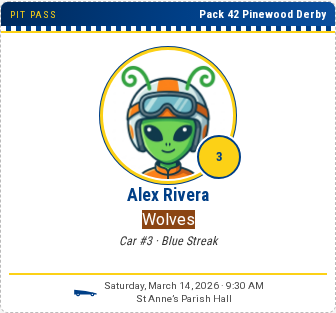
Lanyard sized, six to a sheet. The photo, the name, the den, the car, a small vehicle picture, and the event details — what a scout needs to know where to be. A racer's home pack prints as a small line of its own once it is set — left off for an ordinary single-pack race, where nobody has one. The picture (car, rocket, or boat) follows a System Settings choice; see Printed documents.
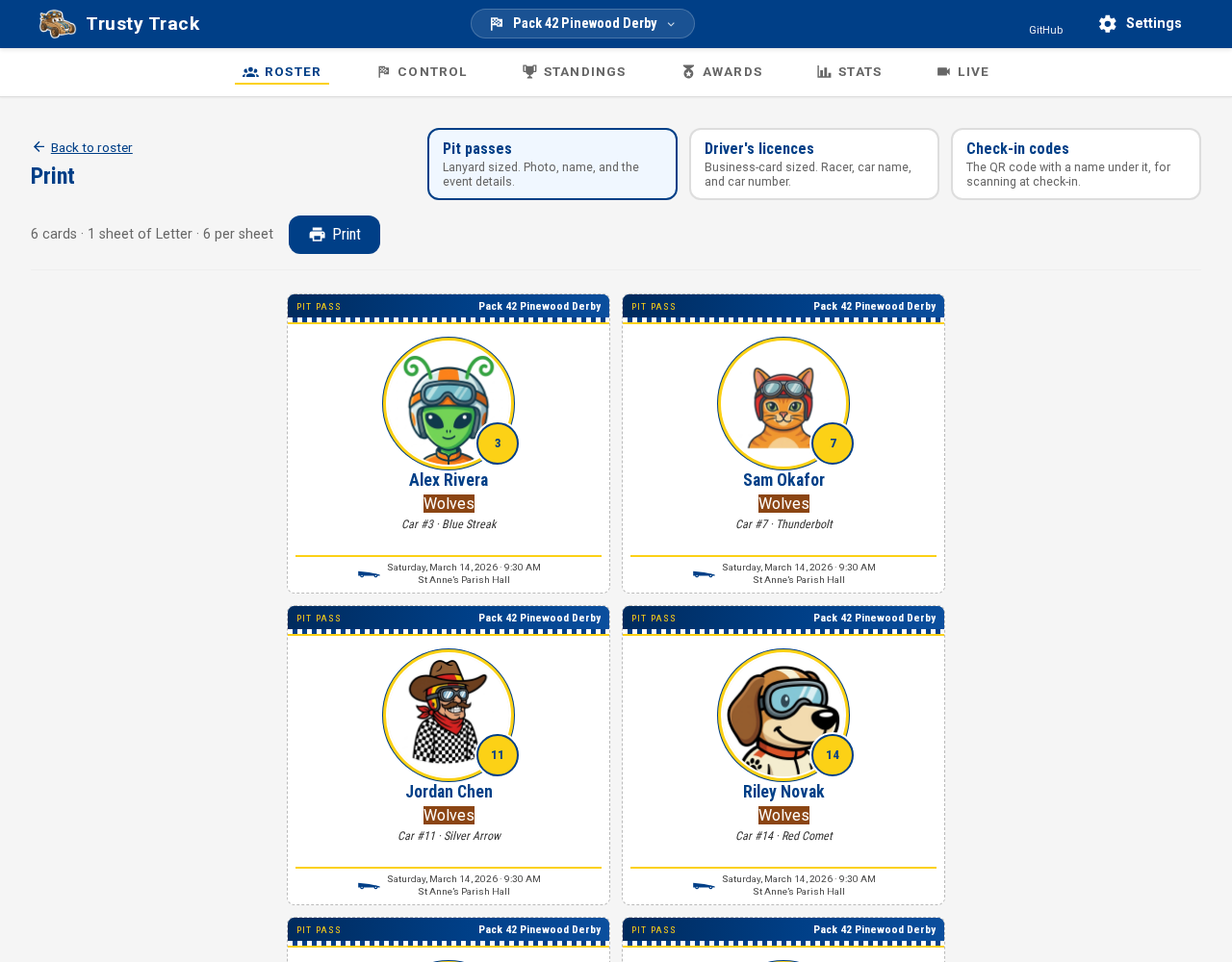
A racer with no photo yet gets their initials instead. Passes usually get printed before check-in, which is exactly when the photos are missing.
Driver's licenses
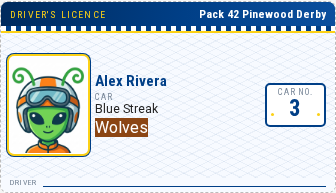
Business-card sized, ten to a sheet — the same size as stationery-shop business card stock, if you want to print them on card rather than cut them out.
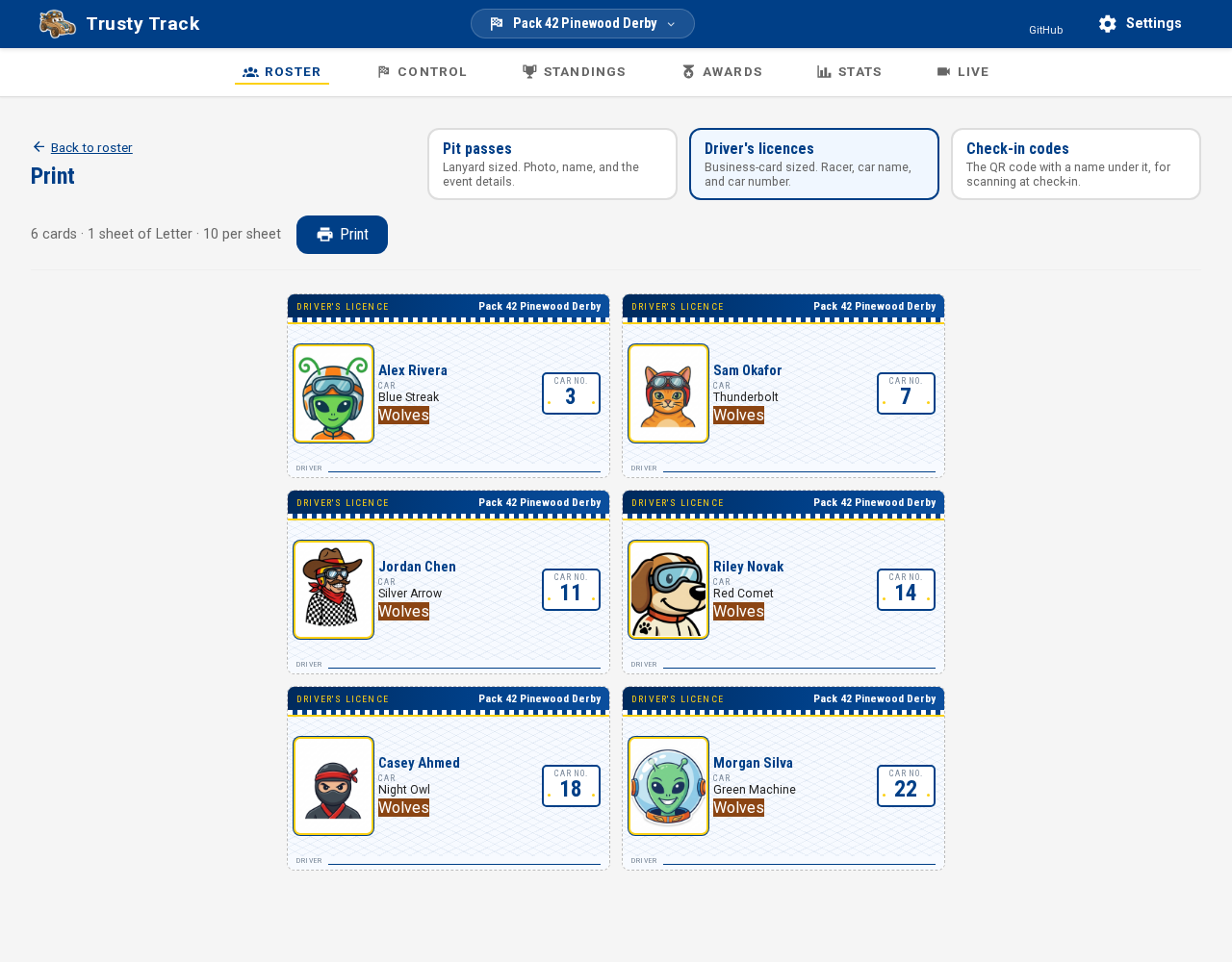
The car number is the biggest thing on it, because that is what gets called out at the track. There is a blank line along the bottom for the scout to sign, which is worth having them do at the check-in table — it is the bit that makes it feel like a license.
Check-in codes
A QR code per racer, twelve to a sheet, with the name and car number underneath.
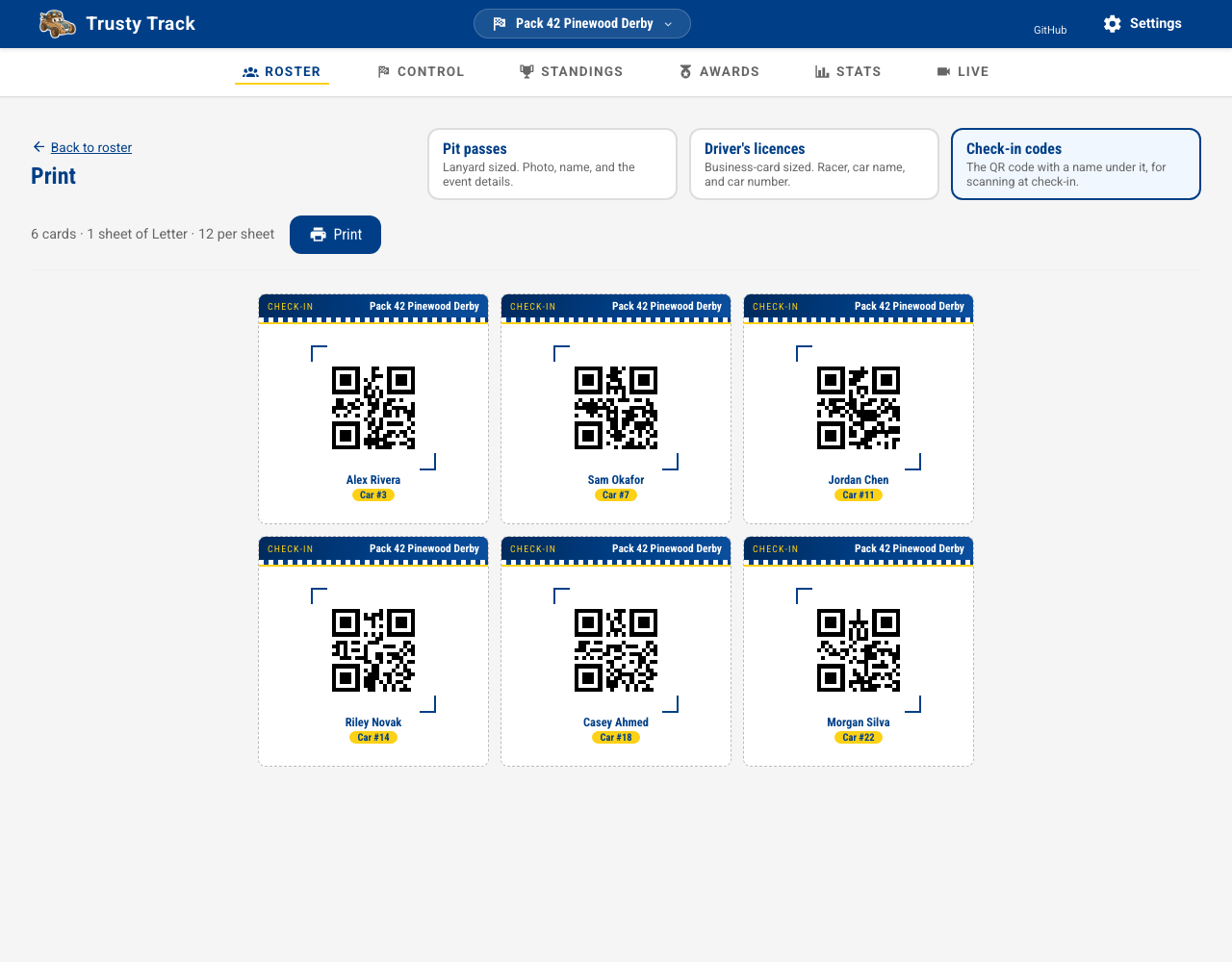
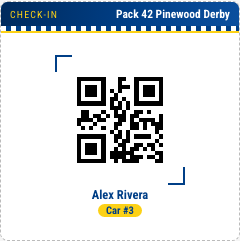
Cut them up and hand them out, or leave the sheet whole and scan off it as scouts arrive — the name under each code is there for both.
The code identifies that racer at that race. A code printed at last year's derby will not scan into this year's, which is deliberate: the racer it points at could well be a different scout this year, and scanning the wrong child in at check-in is expensive.
Car labels for the pit
Once a car is checked in and weighed, it goes into impound — the staging pits where nobody may touch or modify it until their racing is done. With fifty near-identical wedges in shoeboxes and cubbies, a label on the car (or on its box) is what lets a pit wrangler find car #24 without flipping cars over or disturbing the graphite on the axles.
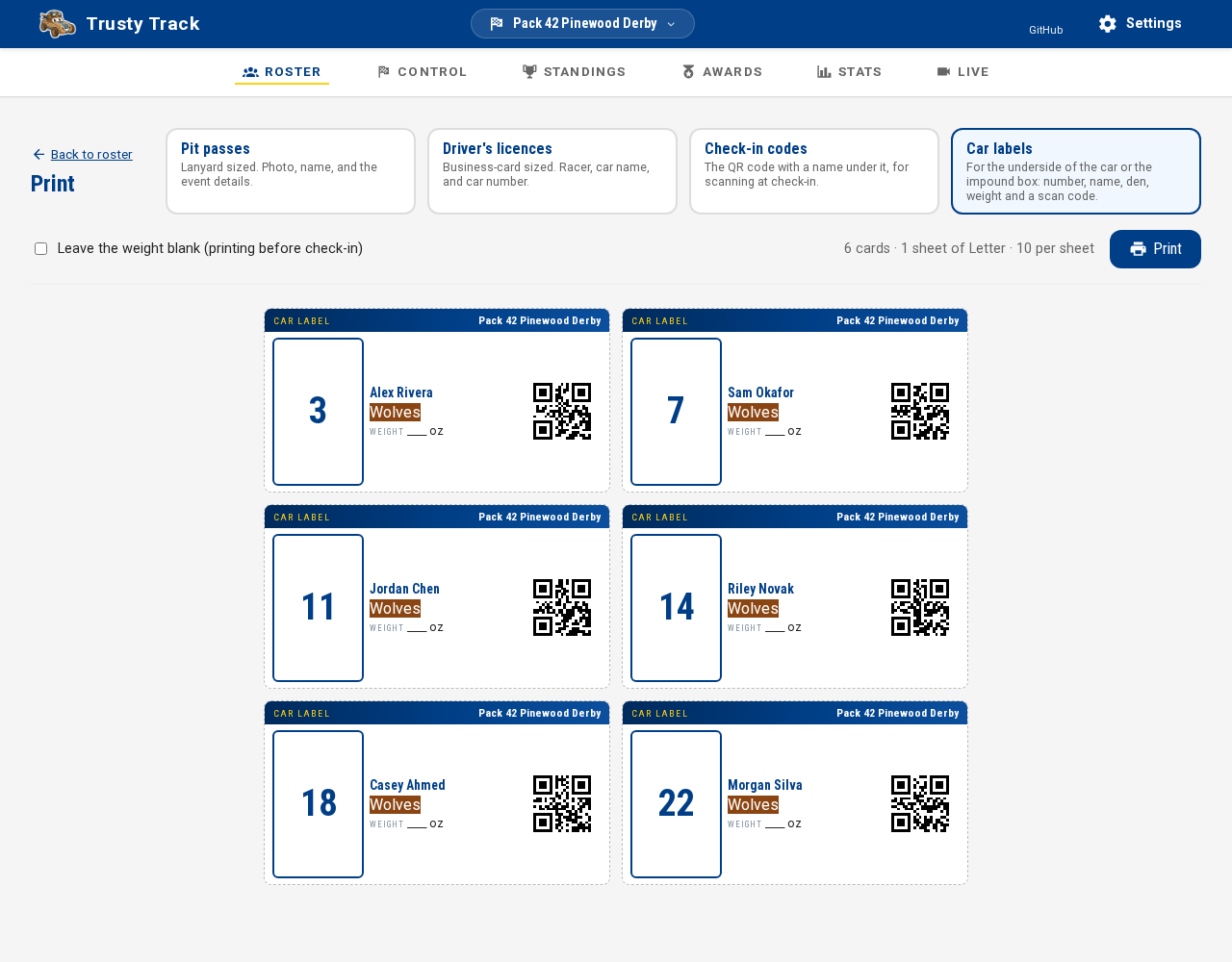 Ten to a sheet, sized for Avery 5163 shipping labels. The car number is the
biggest thing on it; the name, the den, the weight, and a scan code are
alongside it, with the racer's home pack too once one is set. No photo — this
label rides on the car, not on the scout.
Ten to a sheet, sized for Avery 5163 shipping labels. The car number is the
biggest thing on it; the name, the den, the weight, and a scan code are
alongside it, with the racer's home pack too once one is set. No photo — this
label rides on the car, not on the scout.
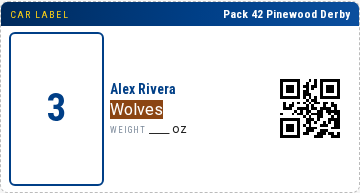
Buy Avery 5163 (2in × 4in shipping labels, ten per sheet) if you want these on real adhesive stock; plain paper and a pair of scissors works too.
Pit crews usually print these twice. Tick Leave the weight blank (printing
before check-in) to run a batch off before the scale opens — every label
prints ____ oz so nobody hands out a label claiming a weight that hasn't
been checked yet. Once the scale has weighed everybody, untick it and print
again to get the recorded weights on the labels. Either way, selecting
racers first (or leaving nothing ticked for the whole roster) works exactly
as it does for the other documents on this page.
Scanning at check-in
Click Scan above the roster, hold a printed code up to the camera, and that racer's check-in opens.
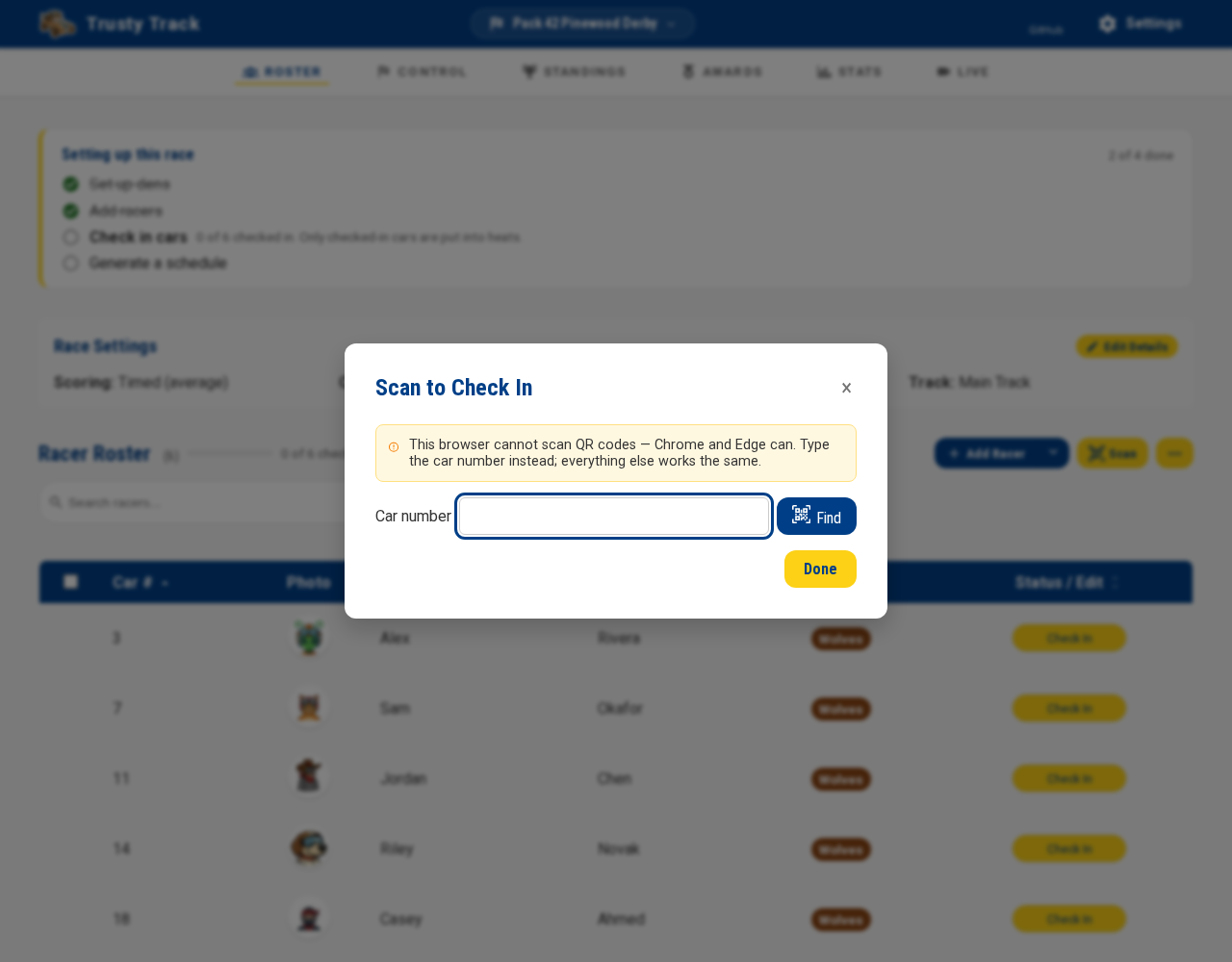
(The green pattern above is a test camera — yours shows the real one.)
There is a Car number box under the viewfinder, and it works everywhere. Use it when a code is creased, the camera will not focus, or there is a queue.
Scanning needs Chrome or Edge
QR decoding uses a browser feature only Chromium-based browsers have. In Safari and Firefox the scanner opens without a viewfinder and the car number box is the way in — everything else about check-in is the same.
If the scanner refuses a code, it says why — a code that is not Trusty Track's, one from a different race, or one for a racer no longer on the roster. Typing a car number nobody holds, or one that more than one racer holds, says so too. Each message is explained in Printed documents.
Printing
Click Print and your browser's own print dialogue opens. Two things worth setting the first time:
Turn on background graphics
In the print dialogue, under More settings, tick Background graphics (Chrome) or Print backgrounds (Safari, Firefox). Without it the header bars and den colors print white. (The header color itself depends on which theme is set for Printables — blue is only Field Uniform's own.)
Set margins to Default, not None
The sheets are laid out for a half-inch margin. "None" will crop the outer column.
The dashed lines on screen are cut guides — they do not print.
The heat sheet
The running order on paper: a table per round, a row per heat, a column per lane, and an empty Result column to write the finishing order into.
Race Control → Schedule → Heat sheet. It lives there rather than with the cards above because it prints the schedule rather than the roster.
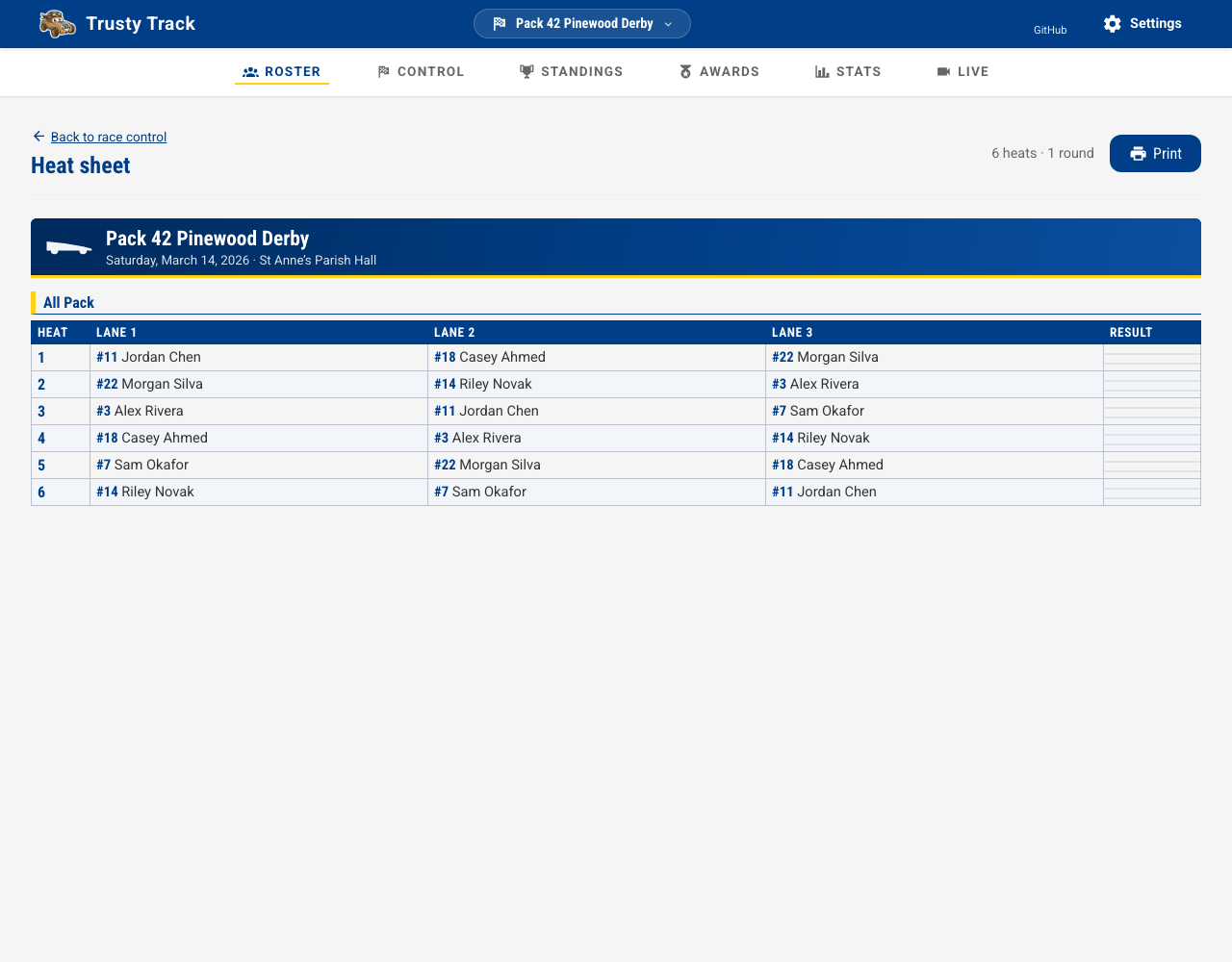
This is the artefact that matters when something goes wrong. The wifi drops, the laptop runs flat, the timer stops talking — and the announcer still has to know which cars are next. Print it once the schedule is settled and put it on the table.
A lane with nobody coming reads —, and a championship place not yet decided reads To be decided — somebody will write a name in. With Interleave heats across every den turned on, a Master running order table leads the sheet, matching the order the Race tab and the wall displays actually run in; a run-off heat gets its own row too, right after the round it is settling. More in Printed documents.
The results sheet
The other half of the pair: the heat sheet goes on the table before the racing, this one goes on the noticeboard afterwards. Awards and their winners at the top, then the standings — overall, the championship round's own result if the race ran one, and one table per den.
Standings → Print results. It lives there rather than in the roster's print menu, because that menu prints the cards — one per racer, before the event — and this is one document about the whole race once it is over.
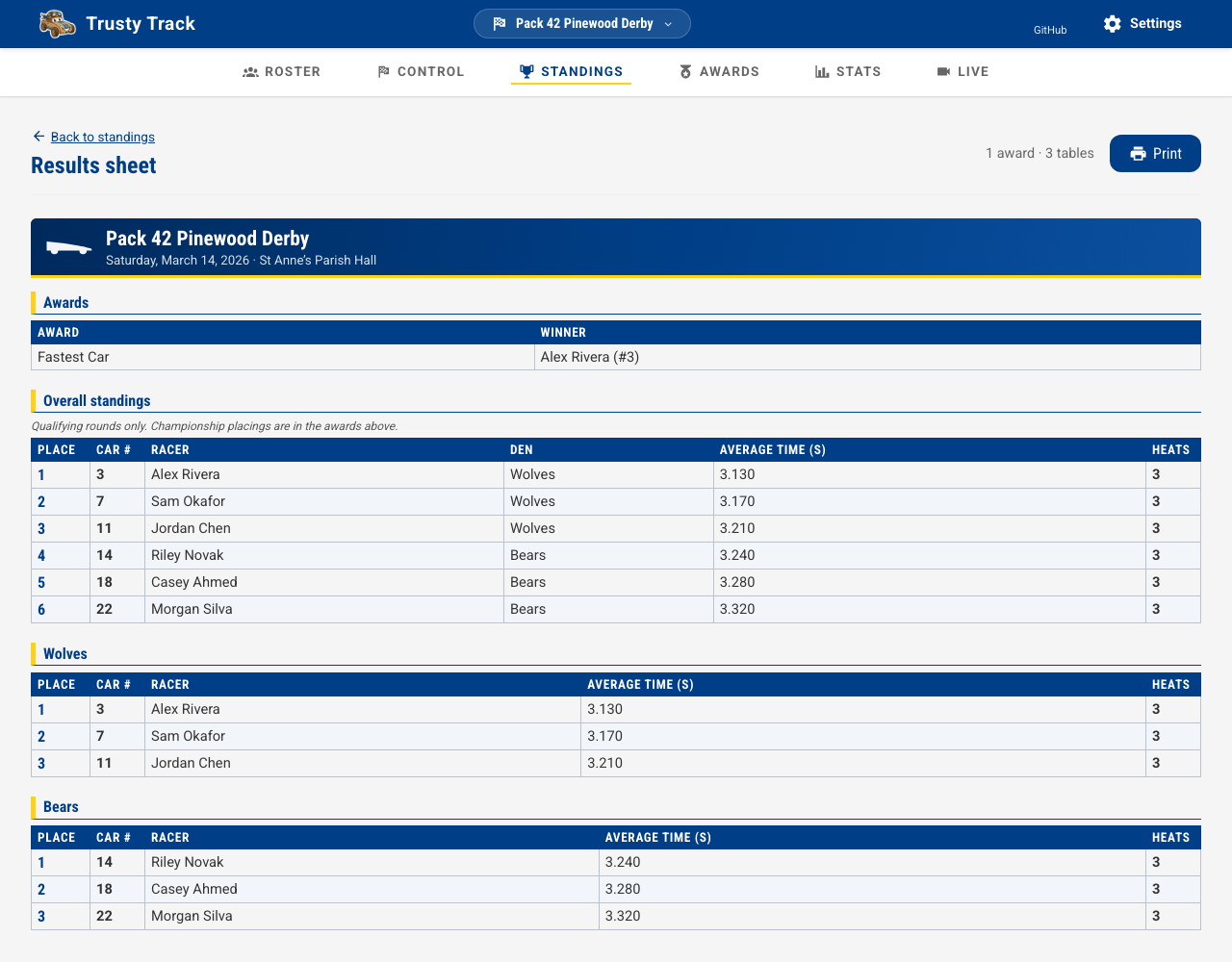 Awards first, then the overall standings, then the championship round's own
table if the race ran one, then a table per den. The den tables are the
overall standings narrowed, so they cannot disagree with a "fastest Wolf"
trophy about who won.
Awards first, then the overall standings, then the championship round's own
table if the race ran one, then a table per den. The den tables are the
overall standings narrowed, so they cannot disagree with a "fastest Wolf"
trophy about who won.
The standings on it are the qualifying rounds only, and the sheet says so — right beside the championship round's own table, once that round has actually been raced. Two racers who tie keep the same place number, on the overall table and on a den's own. Each den's table is numbered from 1, and an undecided award prints as Not awarded. The rest of the rules are in Printed documents.
Certificates
One certificate per award, in the ceremony's own running order — a scout's take-home, where the results sheet is the noticeboard's copy.
Race → Awards → Print certificates.
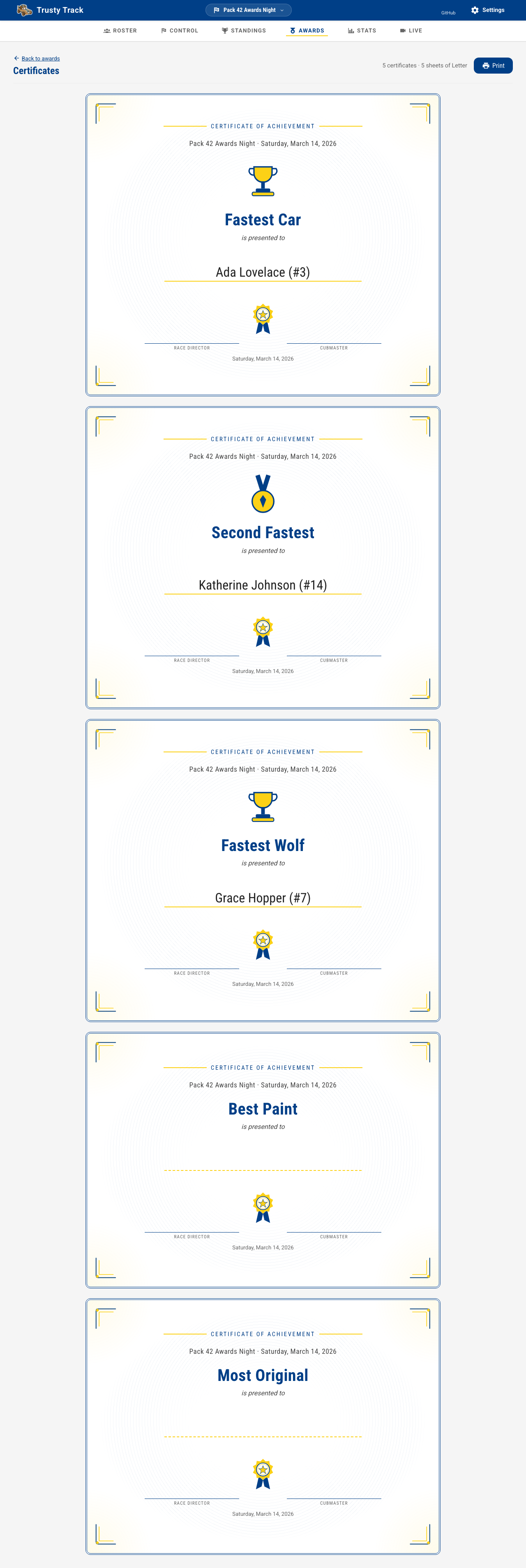
An award nobody has decided yet still gets a certificate, with a blank line to write a name on rather than being left out of the batch — most awards stay undecided right up until the ceremony, and reprinting the whole run the moment the last one is announced would be worse than a blank line. A ready-made superlative or a speed award (Fastest Car, Fastest Wolf, and so on) prints its artwork; anything else prints a plain certificate. More in Printed documents.