Race and track settings
Every field on the race form and the track card, and what each one does.
The race
Set when you create a race (+ Create New Race on Home) and editable afterwards from the Roster page's own Edit race button, beside the race's name at the top of the page — or, without going there first, from Edit race in a race row's ⋯ menu on Home, or from the Edit race button on Race Control. All three open the same form.
The edit form is in six sections, listed down its left: Event, Scoring, Check-in, Words and names, Appearance and Displays. Pick the one holding the setting you came for; Save Changes saves every section at once, whichever is up. If something in a section that is not on screen would stop the save — a blank name, say — the form switches to that section and says what is wrong, rather than refusing over a field you cannot see. The + Create New Race form is the same fields on one page under the same headings, since the first time through you are filling everything in anyway — it is the last step of the setup wizard, described next. Three of the six sections hold nothing on that first page, and are absent from it rather than showing as an empty heading: Words and names and Appearance — the race's own Appearance overrides the themes set under System Settings → Look & sound — because both override an install-wide default that has nothing to override until the race exists; and Displays, because the QR code headline and Wi-Fi guidance it holds serve one audience-display view most races never assign, and the day you create a race is not the day to be asked about it.
Creating a race: the setup wizard
+ Create New Race opens a short wizard rather than the bare form, so a race arrives with its dens already made and its words already chosen. Next and Back move between the steps; nothing is saved until Create Race on the last one.
| Step | What it asks |
|---|---|
| Start | Only once a race already exists: Start from scratch, or Copy settings from a previous race (below). |
| Kind of event | What is being raced — Pinewood Derby (cars), Space Derby (rockets) or Raingutter Regatta (boats). Who is holding it — Cub Scouts, Awana, A school, or Something else. For Cub Scouts, whether it is one pack's own derby or a district or council derby. The line at the bottom says which three words the race will use. |
| Dens | A ready-made list from those answers, to adjust: the six Cub Scout ranks (Lion through Arrow of Light, each in its rank color, each with a Category to match) for a pack or a district; Awana's Cubbies, Sparks, T&T, Trek and Journey; nothing yet for a school or anyone else, since their groups are their own. Rename, recolor, add or remove; each is offered the next free block of a hundred car numbers, which you can clear. An empty list is fine for a race that does not group racers. |
| Details | The race form — everything under The race above. |
The answers become words, and only the words that differ are stored. A pack's Pinewood Derby on an ordinary install answers to "Pack", "Den" and "Car" already, so the wizard stores no override for it and the race simply inherits the install's words — changing them later in System Settings still reaches it. A Space Derby, a school, a district derby: those store the seven-word override described under The words on screen, exactly as though you had ticked Use different words for this race afterwards, and the edit form's Words and names section shows it that way.
| Answer | Organization | Racing group | Vehicle |
|---|---|---|---|
| Cub Scouts, one pack's own derby | Pack | Den | — |
| Cub Scouts, a district or council derby | District | Rank | — |
| Awana | Club | Group | — |
| A school | School | Grade | — |
| Something else | Organization | Group | — |
| Pinewood Derby | — | — | Car |
| Space Derby | — | — | Rocket (with the rocket picture) |
| Raingutter Regatta | — | — | Boat (with the boat picture) |
These are starting points, not rules: every word can be changed on the edit form afterwards, and every den on the Dens step or from Manage Dens.
Copying a previous race
Once any race exists, the wizard's first step offers Copy settings from a previous race. Pick one from the list and the questions are skipped — the previous race is the answer — and you go straight to its dens, with its settings filled in on the form.
Copied: every den, with its name, color, Category and car number range; the scoring method, Drop worst run(s), Ties and Championship Trophies; the car numbering strategy and start number; the weight limit (or no weight check, if it had none); the race's own words, if it had any; the location; the round plan — how the qualifying round was run (General, Elimination or Balanced, and how many runs per lane) and each championship round that followed it (its name, how many advance, and whether it draws from everyone or from each den) — and every award's definition — its name, kind and rule — with nobody assigned to any of them yet. A copied den-scoped speed award follows its den across, and a copied award tied to one specific round follows that round across too, provided the round plan is being copied and still reproduces it.
The Details step shows a one-line summary of the round plan that will be built — "Rounds: 1 qualifying (General, 2 runs per lane) → Championship (top 3) — from last year's race" — beside a Copy the rounds too checkbox, on by default. Unticking it leaves the new race with no rounds at all, exactly as if it had been built from scratch; the round wizard builds them from scratch once the race exists. The Dens step, one screen earlier, lists exactly which awards are coming across before you create the race, and names the ones that are not: an award tied to a round the plan does not reproduce (the qualifying round itself, a run-off, or one that no longer exists), scoped to a den you remove on that same step, or naming any round at all while Copy the rounds too ends up unticked. Nothing here is a surprise you discover afterwards — add either kind again once the race is set up, the rounds through the round wizard and an award from the Awards tab, if you still want it.
Not copied: the name and date, which are what make it a new race; the roster, check-in, photos, heats, results and votes; who was assigned to a copied award — last year's Best Paint winner is not this year's, and a speed award's winner is always worked out fresh from this year's own results, never carried over; the QR code display text; the running-order, trophy and name-display settings the edit form offers only after a race exists; and the lock. A race that inherited the install's words stays inheriting when copied, rather than freezing whatever they resolved to that day.
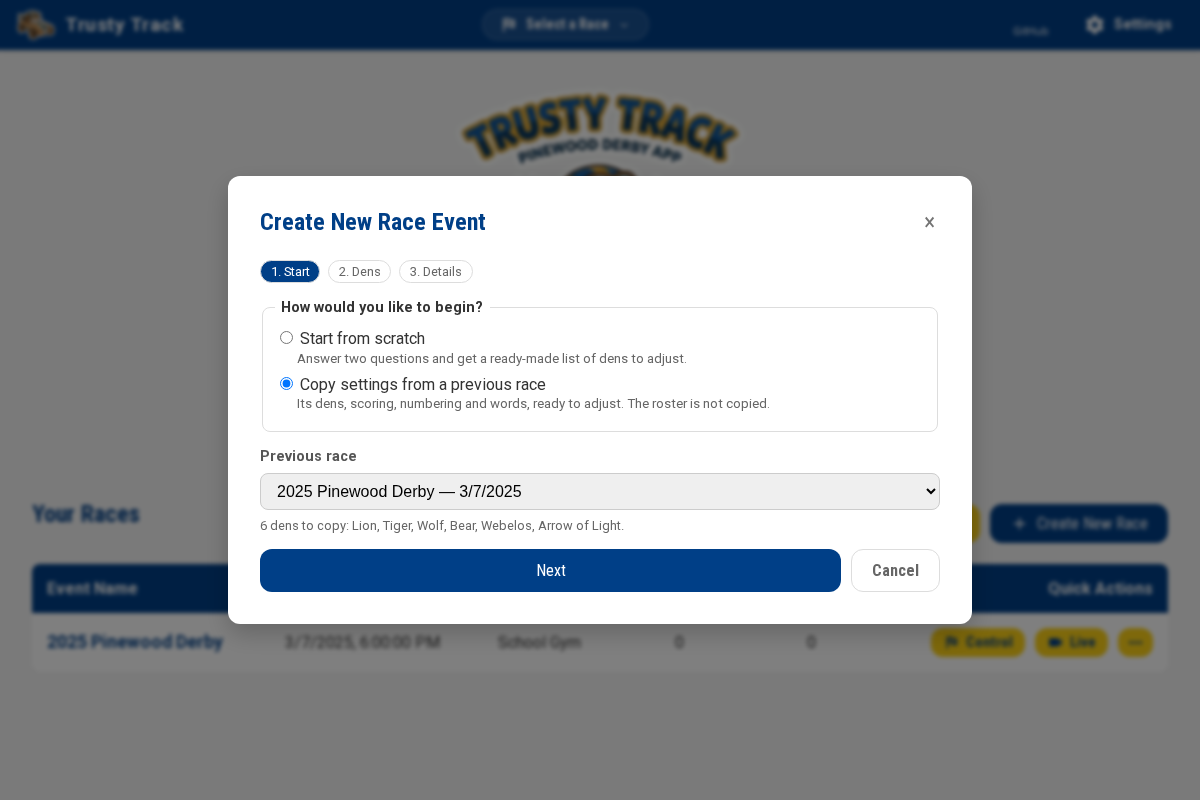 Copying last year's derby: its six dens come across, and the form opens on
its scoring and numbering. The roster does not — that is this year's.
Copying last year's derby: its six dens come across, and the form opens on
its scoring and numbering. The roster does not — that is this year's.
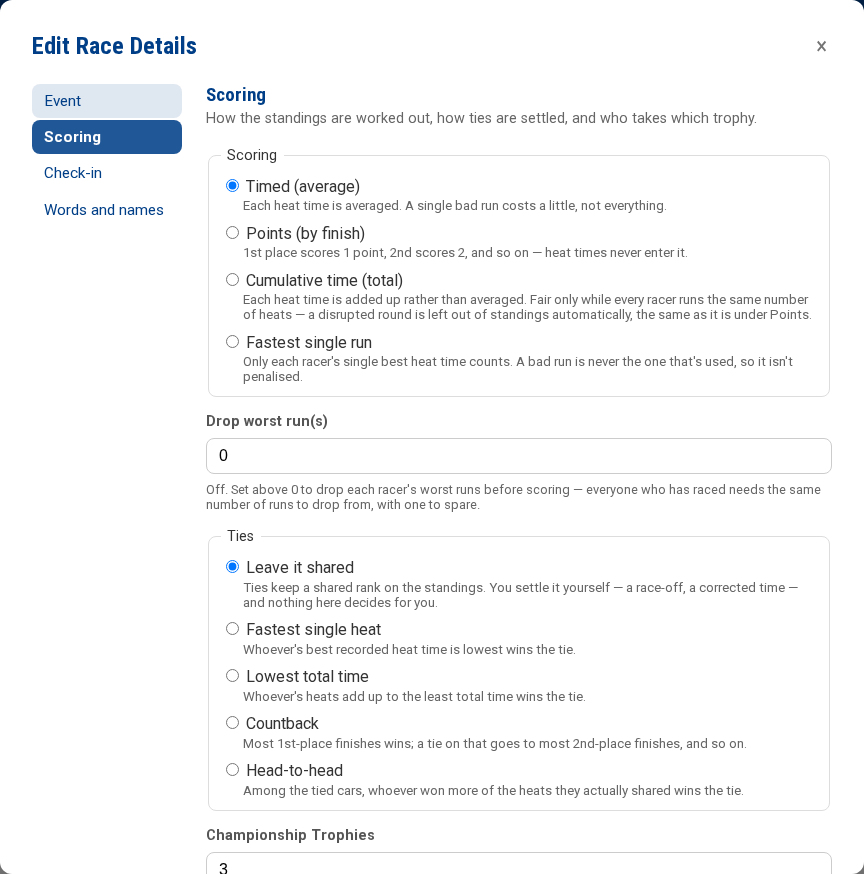 The edit form open on Scoring. The other four sections are one click
away in the list on the left; Save Changes saves them all.
The edit form open on Scoring. The other four sections are one click
away in the list on the left; Save Changes saves them all.
Event
What the race is called, when and where it runs, and which track it runs on.
| Field | What it does |
|---|---|
| Lock race | Not offered until the race is created. Guards a concluded race against an accidental edit — see locking a race below. First in the form, since a finished event is the usual reason to open it again |
| Event Name | Names the race everywhere. Must be unique |
| Date & Time / Location | Shown on the Home page and printed on pit passes |
| Track / Timer | Which track this race runs on. The track's own lanes, timer and records live in System Settings, not here — a track is hardware in the room, shared by every race run on it |
| Interleave heats across every den | Off by default; only offered once the race exists. One running order across every den instead of a block per den — see Running order across groups |
Scoring
How the standings are worked out, how ties are settled, and who takes which trophy.
| Field | What it does |
|---|---|
| Scoring | Timed, Points, Cumulative time, or Fastest single run — see Scoring. Choose before racing starts. Every option shows its one-line description underneath it, not only the one currently picked |
| Drop worst run(s) | 0 is off. Drops each racer's worst counted results before scoring — only once everyone who has raced has the same number of runs to drop from, with one to spare; otherwise nothing is dropped and the standings say so. See Drop the worst run |
| Ties | How a tied score gets settled where it decides something — see Ties below |
| Championship Trophies | How many cars the wizard puts into the final, and how many trophies get seeded onto the Awards page the moment that final exists — 1st, 2nd, 3rd, and so on. Changing this later does not add or remove awards already there; see The Championship Trophies number |
| Exclude Grand Finals winners from qualifying standings | Off by default; only offered once the race exists. Once a championship round has a winner, that car stops counting toward the standings it qualified from, so the pack champion does not also keep their own den's trophy — see Racing without being ranked |
| At most one trophy per racer | Off by default; only offered once the race exists. A racer who already holds an award is skipped when a later one is worked out, so a den trophy rolls down to the next-fastest car once its own winner has already taken the overall trophy — see At most one trophy per racer |
Check-in
How numbers are handed out, and what the scale checks.
| Field | What it does |
|---|---|
| Car Numbering | See car numbering below |
| Check car weights at inspection | See the weight check below |
Words and names
What this race calls things, and how much of a racer's name a public screen shows. Neither control is offered until the race is created — both override an install-wide default, and there is nothing to override until the race exists.
| Field | What it does |
|---|---|
| Use different words for this race | See the words on screen below |
| Override names on public screens for this race | See names on public screens below |
Auto-advance, on the race screen itself, is also remembered per race: when on, the screen moves to the next heat ten seconds after results land.
Appearance
The look of the wall display and printed documents for this race. Neither picker is offered until the race is created — both override an install-wide default, and there is nothing to override until the race exists.
| Field | What it does |
|---|---|
| Display theme | Overrides System Settings' own Display theme for this race's wall screens and projector — see Themes |
| Printables theme | Overrides System Settings' own Printables theme for this race's pit passes, licenses, heat sheets and certificates — see Themes |
"Use the install's setting" keeps this race following whatever System Settings is set to, including a later change — that is the default for a race with no opinion of its own. Picking one of the seven themes, including "Field Uniform (default)," pins this race to it regardless of what the install does afterwards. A preview underneath both pickers shows the resolved look — the race's own choice if it has one, otherwise the install's current setting. The App theme has no row here at all: it stays per device, and travels with neither the race nor the install.
Displays
What the QR code display screen says. Neither field is offered until the race is created — they serve one audience-display view most races never assign, and asking for them on the same page as the scoring decision every race needs was the wrong place for them.
| Field | What it does |
|---|---|
| QR code headline (optional) | See QR code display below |
| Venue Wi-Fi guidance (optional) | See QR code display below |
Ties
Set once, when the race is created, and editable afterwards from the Scoring section of the edit form. Five choices, in a fieldset next to Scoring — every option shows its one-line description underneath it, not only the one currently picked:
| Choice | What it looks at | Who wins |
|---|---|---|
| Leave it shared | Nothing — this is the default | Nobody: tied cars share the place, and a cut takes a provisional pick that stays yours to decide |
| Fastest single heat | Each tied car's single fastest heat | The lowest of those |
| Lowest total time | Each tied car's heat times, added up | The lowest total |
| Countback | Finishing places, not times: how many 1st-place heats, then 2nds, and so on | The most 1sts, then the most 2nds, and so on |
| Head-to-head | Only the heats where the tied cars raced each other | Whoever won more of those |
Each of the last four only helps under some scoring methods, not all of them, and picking one that cannot help this race gets a warning right there in the fieldset — naming the reason, not just that it won't fire:
- Fastest single heat does nothing under Fastest single run scoring, where that is already what is being compared — with or without worst runs dropped, since dropping the worst can never remove the best.
- Lowest total time does nothing under Cumulative time scoring, where it's the score itself — unless worst runs are being dropped, since Cumulative time then scores the total after dropping while this still compares the raw total, and the two can disagree. It is not ruled out under Timed (average): a disrupted round is kept under Timed rather than dropped from standings, so two tied cars can average the same on a different number of heats while their raw totals differ — Lowest total time can still separate them there.
- Fastest single heat or Lowest total time on a Points race running with no timer: that combination never records a time to compare.
Nothing stops you choosing a method that won't help anyway; the warning is there so you find out on the form rather than on race day. Head-to-head has no such warning — whether the tied cars ever raced each other depends on the heats actually run, not on a setting — but if they never shared one, the tie simply stays shared.
Whichever method is chosen, it settles a tie only where a tie actually decides something — the last qualifying slot in a championship round, or a speed award's recipient — and only when the recorded results actually support an answer. The full rules, including what "cannot settle it" means and where that shows up, are in When two cars tie.
The weight check
On by default at 5.0 oz — the near-universal pack rule. When a weight over the limit is typed at check-in, the box turns red and says so.
- It is a warning, never a refusal. The car can still be checked in. The inspector at the table decides; the app makes the rule visible at the moment it matters.
- The tolerance is half a hundredth of an ounce. Desk scales disagree in the last decimal place: a car displaying 5.00 always passes a 5.0 limit, and one displaying 5.01 never does.
- A weight of zero means "not weighed", not "very light" — no tick, no warning.
- Turn the check off entirely if your pack does not weigh cars.
QR code display
Two optional text fields in the Displays section of the race's edit form — a headline (e.g. "Scan to Vote for Best in Show!") and a line of venue Wi-Fi guidance (e.g. "Connect to the guest Wi-Fi first") — shown on the full-screen QR code audience display view. Both are blank by default: the screen falls back to a sensible headline of its own and shows no Wi-Fi line at all. Not offered on the + Create New Race form — see Audience display views for what the screen actually shows and which page the code opens.
Car numbering
| Choice | How numbers are handed out |
|---|---|
| Per Den | Auto number fills from each den's own range — 100–199 for the first den, 200–299 for the next. The ranges are on each den in Manage Dens, and can be changed or cleared |
| Global | Sequentially from one starting number, den regardless |
| Manual | You type every number yourself; Auto number leaves the race alone. Duplicates are allowed — which is why the check-in scanner's car number box only matches when exactly one racer holds the number |
Auto number never hands out a number another racer already holds, whether you select everyone or just a few — numbers held by racers outside your selection are skipped, not overwritten. Selecting a handful of latecomers and clicking Auto number numbers only them, leaving everyone else's numbers untouched.
Two dens' ranges cannot overlap — setting one up on the Dens step, or editing it afterwards in Manage Dens, is refused with a message naming both dens if their ranges would collide. This does not apply to Manual numbering, where racers sharing a number is allowed by design.
The setup wizard's Dens step gives each den a block of numbers of its own by default, so a race created there starts on Per Den numbering rather than Global — the ranges the wizard already scaffolded would otherwise go unused. Cleared every den's range on that step, or started from a blank list? The race stays on Global, exactly as before.
Typing a number already on the roster is a warning, not a refusal. Add Racer and Edit Racer show a note naming who already holds the number, under any numbering strategy — it does not block the save. Under Manual numbering this is expected; under Per Den or Global it is usually a sign the wrong number was typed, and the note is there to catch that before check-in does.
Locking a race
Once an event has concluded, Lock race guards against an accidental edit — a stray tap on a shared laptop weeks later, not a control for keeping anyone out. The quickest way there is the race's ⋯ menu on the Home page, which toggles it directly with a confirmation; it is also the first control in the edit form's Event section. It is not offered while creating a race, only afterwards.
While a race is locked:
- Scheduling, results, racer registrations and awards cannot be changed. Every screen that would change one of those shows a Locked badge and explains why its controls are disabled.
- The race stays fully readable — the roster, standings, stats and every audience display keep working exactly as before.
- Voting and the audience displays are unaffected — a display is told what to show separately from the race's own record, and a vote is gated by its own Voting is open switch, not by the lock.
- Deleting the race is still allowed. A locked race is exactly the one an operator might delete without reading every word of a confirmation, so deleting one asks for the race's exact name to be typed first, rather than the ordinary yes/no confirmation every other race gets.
- A break already under way can still be paused, resumed or ended. Starting a fresh break is not offered — a locked race is presumed done racing — but none of pause, resume or end can hand it more time than it already had, so there is always a way to clear one rather than leaving every assigned display parked on the break overlay.
- Unlocking is the other change a locked race still accepts — from the same Lock race checkbox, now labelled Unlock race, at the top of the edit form's Event section, reached from the Roster page, from Race Control, or from a race row's ⋯ menu on Home.
A locked race is marked with a Locked badge on Home's race list, in the race picker at the top of every screen, and on Race Control's own header.
The track
Tracks live in System Settings and are shared between races — the track is hardware in the room, so a venue running two races has the same track in both.
| Field | What it does |
|---|---|
| Track Name | Names it in race forms and settings |
| Lanes | How many lanes the track has. Schedules are built for this — lowering it mid-event brings existing heats into line, see turning down a track's lane count |
| Lanes in service | Sits directly under Lanes, since "how many lanes" and "which of them work" are the same question asked twice. Untick a lane that has stopped working. Unlike the rest of the card, this saves the moment you click it — see a lane stops working |
| Length (Feet) | How far a car travels down the track — used to work out scale speed, if that's turned on |
| Timer Type | Fake, plugged into this machine, plugged into the laptop running the browser, or no timer at all — see Timers and No timer below |
| Serial Port | Almost always blank. Fill it only to force a specific port; it is then used exactly as typed |
| Timer Model | Almost always Detect automatically. See the model picker |
| This track has a remote start gate | Enables the on-screen gate release, if the timer supports it — see the remote start gate |
| The timer's cable is wired backwards | Flips every result so the timer's lane 1 matches the track's highest lane, instead of rewiring the timer or renumbering the track — see reverse lane numbering |
| Lane colors (optional) | Match each lane to the color painted or taped on the physical track — see Lane colors below |
| Track records from past years | Records from before Trusty Track, entered by hand for the Stats page's record board. Saves as soon as you add one — see the track record |
Lanes in service and Lane colors are both a chip per lane, but they are two separate controls with two different save models rather than one merged control: lanes in service is an urgent, race-day change that has to apply the moment you click it, and lane colors are a one-time setup fact that batches with the rest of this card's Save Settings. Forcing both onto one save model would make one of the two worse, so the two rows are drawn differently too — lanes in service as squared checkbox chips, lane colors as round swatches — rather than as two rows of the same-looking pill.
Lane colors
Most physical pinewood derby tracks — aluminum, wood, or a kit like BestTrack or Freedom Track — paint or sleeve each lane a different color, and the wranglers, staging crew and even the announcer end up calling cars by it: "put car #12 in the blue lane." Trusty Track only ever knew lanes by number, so nothing on screen matched what was painted on the ground.
A small color picker sits under Lane colors on the track's own card, one per physical lane — not just the lanes currently in service, since a color is a fact about the physical lane and does not move when one goes out of service or the lane count is turned down. Use standard colors fills in the usual red/white/blue/yellow (and green/orange for a six-lane track) as a starting point; pick any lane's own color afterwards to match your track exactly, or Clear all to go back to plain numbers. This is an ordinary field on the track's card, like Length (Feet) — it saves with the page's Save Settings button, not on click the way Lanes in service does.
Leave every lane blank and nothing changes: this is entirely optional, and a track with no colors configured looks exactly as it always has.
Once set, a small colored dot appears beside the lane number wherever a lane is shown — the Race screen, On Deck, the audience displays, and the printed heat sheet. It is always a dot beside the number, never a color filled in behind it: a filled badge would fight whichever theme is active, and the lane number itself is always there too, since a dot alone means nothing on a black-and-white printout or to someone who cannot tell two hues apart. See Audience display views for what a screen shows, and Printed documents for the heat sheet.
If the timer's cable is wired backwards (see the row above), lane colors still follow the track's own numbering, not the timer's — a color is painted on the ground, and correcting the cable does not move the paint.
Scale speed
The question every scout asks after a heat is how fast that was, in real miles per hour. A pinewood derby car is a scale model — about 7 inches long against a full-size car's roughly 175 — so its heat time and the track's length are enough to work out how fast the full-size car would have to go to cover the same ground in the same time. A typical 3-second run down a 40-foot track comes out to around 200 MPH.
Show scale speed, beside Length (Feet) on the track's card, turns it on. A Scale field appears beneath it once it is, already filled in with 25 — the standard 1:25 ratio a BSA pinewood derby car is built to. That ratio is a fact about the car, not the app, so change it for anything built differently: a Space Derby rocket or a Raingutter Regatta boat is not 1:25. Leave the checkbox off if scale speed does not suit your event at all.
It needs both the checkbox on and a length recorded — a track with no length shows no speed however the checkbox is set, since there is nothing to convert from. Once both are set, the speed appears beside a heat's time on the projector view and the Last heat's times view, and the fastest heat of the race gets its own line on the Stats page.
No timer
Not every pack owns an electronic timer, and No timer — I'll enter results by hand is for that: choose it and the Race screen stops trying to arm a device at all, and the heat's status line shows no timer state — there is none to show. The main button on each heat is Enter Results, opening the same result screen the Override button always has — times for a Timed race, finishing order for a Points race (see Scoring, which is what points-based scoring is for).
This is different from the Fake Timer: the fake one starts heats and invents a finishing time a few seconds later, which is meant for a practice run or trying the software, not for recording a real result. No timer never invents anything — every result is exactly what was typed in.
The Free Race screen follows the same rule, with one difference: it always asks for finishing order rather than a time, whichever scoring method the race itself uses — a free heat is exhibition and is never scored, so the Timed/Points question this section answers for a real heat does not apply to it.
The Timer Model, Serial Port, This track has a remote start gate and The timer's cable is wired backwards fields disappear once No timer is chosen; none of them mean anything without a device.
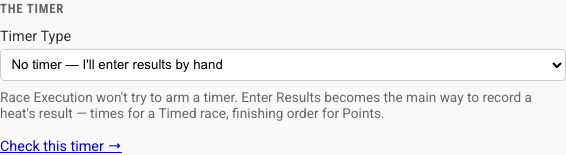 The timer section of a track's card, with No timer — I'll enter results by hand chosen from the Timer Type dropdown.
The organization
Organization Name in System Settings — your pack's name, shown in the header and printed on documents. The Access panel on the same page holds the PINs; see Roles and permissions.
Names on public screens
The audience displays, the printables, and the standings export can show less of a racer's name than the roster does — useful for a race whose standings are posted on a gym wall, or emailed out, where a stranger reading it has no reason to see a child's full name. Three choices:
| Choice | Shows | For |
|---|---|---|
| Full name | Jordan Mitchell | The default — today's behavior, unchanged. |
| First name and last initial | Jordan M. | The common choice for a screen the public can see. |
| First name only | Jordan | A pack whose own policy says no surname on a public screen at all. |
It reaches the projector, the slideshow and the award ceremony; the pit passes, driver's licenses, heat sheet, results sheet and certificates; and the standings CSV export. It does not touch the roster, check-in, Race Control, or the activity log — the people running those screens need the whole name to find the right child in a queue, and all four sit behind a PIN when one is set. The printed check-in codes are the one printable left at full names too, for the same reason: they are scanned at the check-in desk to identify a racer, not carried around the venue like a pit pass.
The same choice also covers a racer's own photograph on the audience displays. A picture of a child's face beside "Jordan M." is not anonymised, so picking anything but Full name hides the racer photo there too — replaced by the same initials placeholder the roster's avatar already falls back to when no photo has been uploaded. The car photo is a different question and is never hidden. Printables keep the racer photo regardless of this setting; a pit pass is handed to the checked-in child it names, not read by a stranger on a wall.
Set install-wide in System Settings → General, under Names on public screens. A race can override that default of its own — tick Override names on public screens for this race in the Words and names section of the race's edit form (not offered on the + Create New Race form, since there is nothing to override until the race exists) and choose a value, including Full name itself if the organization default abbreviates and this one race should not. Unticking the checkbox returns to inheriting the organization's setting.
The words on screen
Trusty Track is built for Cub Scout Pinewood Derby, and "Den", "Pack" and "Car" are just the built-in words for three ideas: a group of racers who race together, the organization holding the event, and what a racer's own entry is called. A school, an AWANA club, a 4-H group, a Space Derby's rockets, a Raingutter Regatta's boats — anyone running the same kind of race — can rename all three, everywhere the app uses them: the roster, the standings, printouts, and the audience displays.
Three words, each with its own plural, since English plurals do not follow a rule a computer should be guessing at:
| Word | Default | Replaces |
|---|---|---|
| Racing group | Den / Dens | "Den", Manage Dens, Per Den numbering, the Den column on the roster, standings and printouts |
| Organization | Pack / Packs | "Pack", the qualifying round's All Pack format |
| Vehicle | Car / Cars | "Car", car numbers on the roster and check-in, "Fastest Car" on the awards screen, and the vehicle word on printouts |
Set install-wide in System Settings → General. A picker there asks the same two questions the setup wizard's Kind of event step asks a single race — what is being raced, and who is holding it — so the install-wide default gets the same help choosing its words that a race already does. Choosing an answer fills in the six boxes below it and turns on Use different words for "Den", "Pack" and "Car" for you.
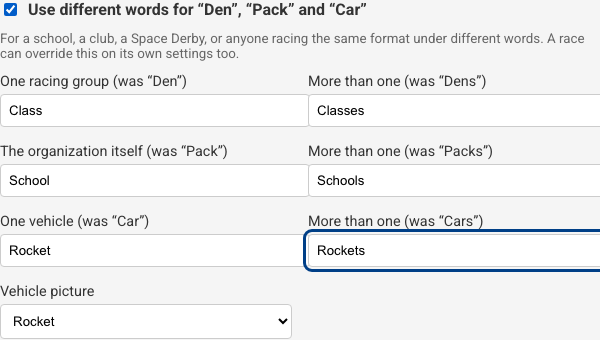 Answering the picker's two questions — here, a Space Derby run by a
school — fills in the six boxes below it: a singular and a plural for each
word, plus the vehicle picture underneath them.
Answering the picker's two questions — here, a Space Derby run by a
school — fills in the six boxes below it: a singular and a plural for each
word, plus the vehicle picture underneath them.
The six boxes are the advanced option, for whatever the picker's own presets don't cover — a word the picker has no preset for, or one word changed without disturbing the rest. Turning the checkbox on by hand, with no picker answer chosen, offers all six boxes already filled in with the built-in words so none of them starts out blank. Editing a box, whether the picker filled it in or you typed it yourself, is ordinary text editing; nothing about the picker itself is saved, and nothing remembers which answer was chosen, so answering it again later simply overwrites the boxes a second time. Answer nothing at all and the install stays Den/Pack/Car, exactly as it always has.
A race can override that default of its own — one venue running a pack derby in March and a school's own derby in May, on the same install, without either one showing the other's words. The setup wizard's Kind of event step is where a new race's words are chosen — a Space Derby held by a school says "Rocket", "Grade" and "School" from its first screen — and it stores them as this override only where they differ from the install's own words (see Creating a race). To change them afterwards, or for a race created before the wizard existed, open the edit form, go to Words and names, and tick Use different words for this race. The seven boxes are not on the create form itself, because the wizard's questions are where a new race's words come from.
Unticking the checkbox returns to inheriting — the organization's own words if it has set any, the built-in Scouting words otherwise. It does not leave the fields blank; there is no way to save an empty word — a blank box stops the save and the form says which section to look in, and the server refuses one too if it is ever asked to save one some other way.
The vehicle word has a picture to go with it: a car, a rocket, or a boat. Vehicle picture sits under the vehicle word's two boxes as three swatch buttons — each showing the actual picture beside its name, so you can see what the rocket or the boat looks like before choosing it — and is independent of the word: renaming "Car" to "Speedster" keeps whichever picture is already chosen, and picking the rocket picture does not touch the word. It draws the small line-art mark on the pit pass footer and on the heat sheet and results sheet's masthead; the certificate does not carry it. A car until you change it.
One label stays fixed for everyone: Category, the field on a racing group that a Cub Scout rank or a school grade goes in — see Adding a New Den. It is a detail on one racing group, not vocabulary a whole screen is built from, so it keeps one name regardless of the words above.
What the Category box suggests follows the words too, not just its label. Nothing records which answer a race or the install chose, so the suggestions come from the words themselves: Pack/Den (or a district's District/Rank) offers the six Cub Scout ranks, Club/Group offers Awana's Cubbies, Sparks, T&T, Trek and Journey, and any other vocabulary — a school's Grade, or your own custom pair of words — offers no suggestions at all. Typing your own is always there regardless.