Instant Replay: the Finish-line Camera
Turn a phone, tablet or laptop into a finish-line camera. When a heat finishes, everyone watching an audience display sees a slow-motion clip of it a few seconds later, cut to the timer's own start and finish so it always shows the actual race.
Note
Prerequisite: A track needs a timer set up (or at least a race running on it) before there is anything for a camera to time itself against. See the Hardware Timer Guide or the Fake Timer Guide.
What You Need
- A device with a camera — a phone propped on a tripod or a stack of books works fine, and so does a laptop's built-in webcam.
- A recent browser: Chrome, Edge, or Safari 16.4 or later — on a phone, a tablet or a computer, iOS included: every browser on iOS is Safari's own engine under its own skin, whatever it calls itself, so there is nothing to switch to or away from there. Firefox does not have the video pipeline this feature is built on and is not supported. See Browser requirements below.
- Trusty Track reached over HTTPS, or on the same machine that is
running it (
localhost). See A note on HTTPS. - Nothing to install — the camera page is a normal web page, like the audience display.
The Happy Path
- On the device that will hold the camera, open Displays in the race navigation row and scan the Connect a camera code — a second code, next to the one a wall display uses, that opens the camera page directly. A race runs on exactly one track, so the code already carries it — there is nothing to choose. If the race doesn't have a track set yet, the block says so instead of showing a code; pick one on the race's own Edit race form first.
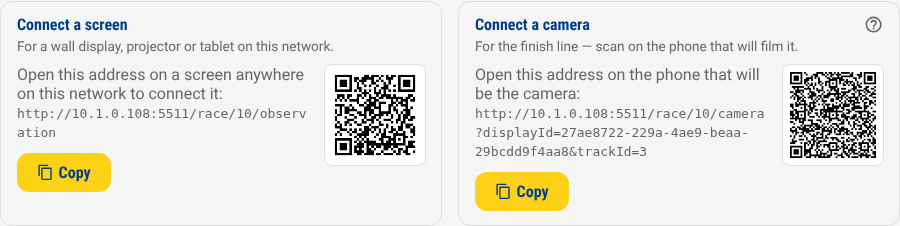 Under Other devices: a code for a wall display or check-in tablet on
the left, and the camera's own code on the right — the same pair, the
same height, so the two read as one thing to scan rather than two
unrelated boxes.
Under Other devices: a code for a wall display or check-in tablet on
the left, and the camera's own code on the right — the same pair, the
same height, so the two read as one thing to scan rather than two
unrelated boxes.
- The browser asks for camera permission. Allow it, and a live preview appears.
- The status line under the preview already says which track this camera is listening to — the one the code carried, set automatically.
- Aim the camera at the finish line (see Aiming the camera below) and prop it up. There is nothing else to do — leave the page open.
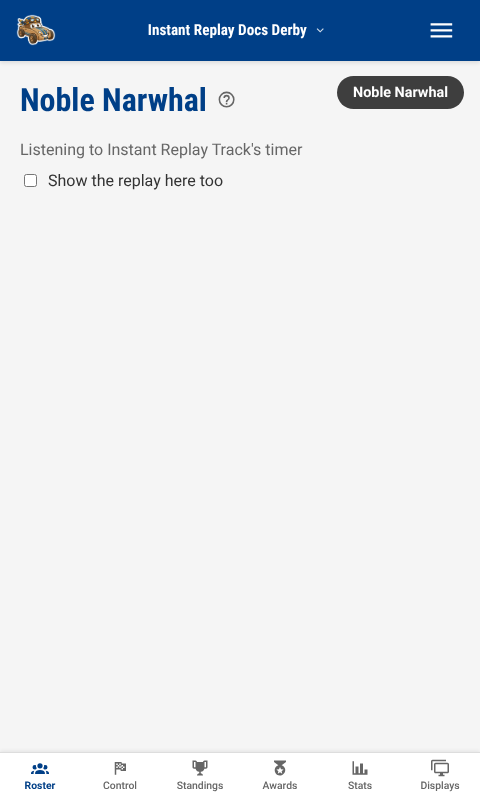 The camera page: the track it is listening to and a status line saying
what it is doing. A real camera also shows a live preview above the status
line — this picture comes from the automated test harness, which has no
camera to preview.
The camera page: the track it is listening to and a status line saying
what it is doing. A real camera also shows a live preview above the status
line — this picture comes from the automated test harness, which has no
camera to preview.
- Race a heat as normal. A few seconds after the result lands, the camera's status line says uploaded — the clip has already been cut and sent.
- Any screen with Replays turned on (every screen, by default) plays the clip once its own results overlay has shown, twice at half speed, and then goes back to what it was showing before.
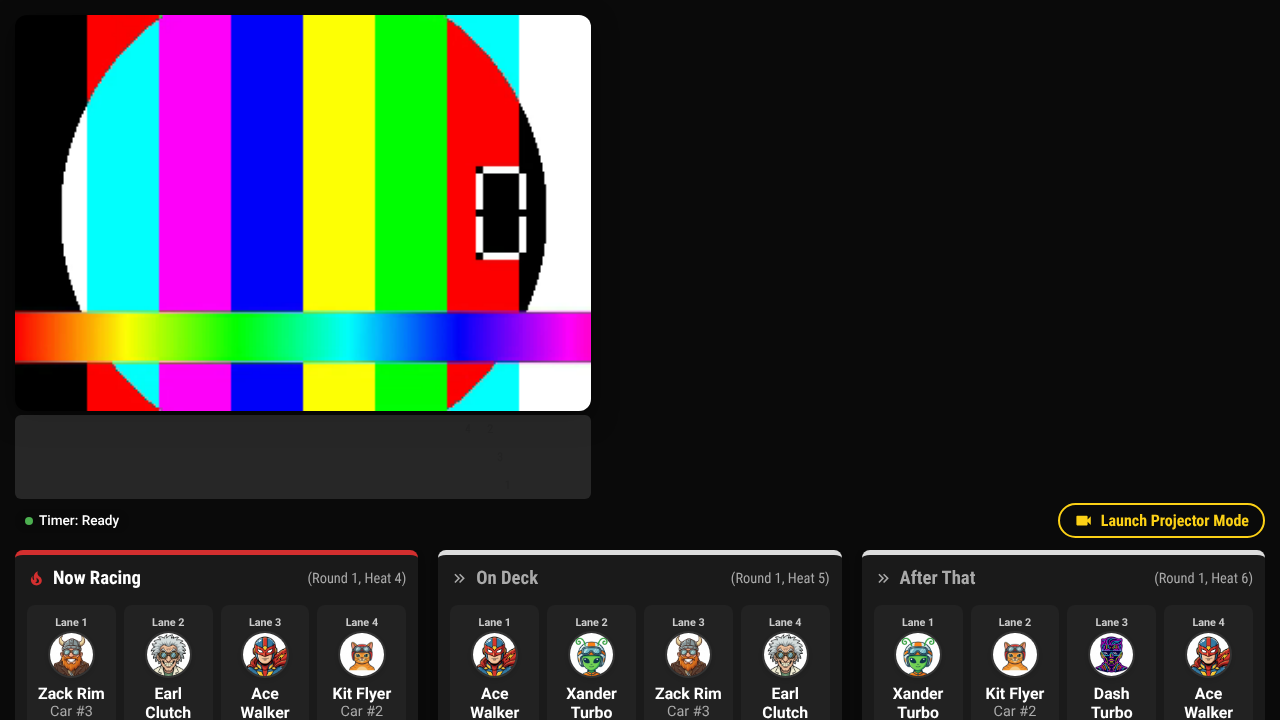 The replay on an audience display — muted, full-screen, gone again after
two showings.
The replay on an audience display — muted, full-screen, gone again after
two showings.
Nothing needs to be told which heat just ran, or when: the camera watches the timer and the results on its own, and the clip finds its way to every screen watching this race.
The Camera Page
The status line under the preview says everything the camera is currently doing:
Listening to Main Track's timer · buffer 10s · last clip 2s ago
- Listening to (track)'s timer — which track's results this camera is watching. Since a race runs on exactly one track, this is set automatically, with nothing to choose.
- buffer Ns — how much recent video it is currently holding, in case a result lands. This climbs to about ten seconds and stays there.
- last clip time ago — when this camera's most recent clip was uploaded, so you can tell at a glance that it is still working.
- uploading… / uploaded / upload failed — appears briefly around each heat. A failed upload is retried automatically on the next result; nothing needs re-doing by hand.
If more than one camera is plugged into the same device (a laptop with a built-in webcam and a USB one attached, say), a second dropdown lets you choose which one to use.
Show the replay here too is a checkbox on the camera page itself — tick it and the camera's own screen also plays back the clip it just captured, useful for checking the framing without needing a second device nearby.
Aiming the Camera
Point the camera across the finish line, close enough that the cars filling the frame are still readable at the resolution the device captures. A straight-on view across all the lanes, a few feet back, works better than a close-up on one lane — the replay is cut to cover every lane's own finish, not just the winner's.
There is nothing to calibrate: the clip's timing comes from the track's own timer, not from anything the camera detects in the picture. A camera aimed slightly off, or catching a little too much or too little of the track, is a framing problem to fix by moving it — it does not affect when the clip starts or stops.
Which Cameras Are Registered
Every camera that has opened its page shows up on the Displays panel, alongside the audience screens — with a line saying which track it is listening to in place of the view dropdown an ordinary screen gets, and a note saying when its last clip landed.
 A camera row on the Displays panel — shows which track it is listening to,
and see at a glance that it is still uploading.
A camera row on the Displays panel — shows which track it is listening to,
and see at a glance that it is still uploading.
Race Control also shows a small badge for each registered camera, above the lock banner, so the operator can tell a camera is still connected without leaving the heat they are running.
 "Finish line — connected, last clip 2s ago" — one badge per camera, on the
operator's own screen.
"Finish line — connected, last clip 2s ago" — one badge per camera, on the
operator's own screen.
Several Cameras
With more than one camera pointed at the same track, each row on the Displays panel gets a small ↑ / ↓ beside its track line — pick which camera's clip plays first when a heat has more than one. Both the replay a display shows after a result and the camera picker in the ▶ modal (see Keeping Clips Longer below) follow this order. Two cameras nobody has ever reordered still play in a fixed, stable order of their own (there is always some order, never an arbitrary one) — the arrows only matter once there is a reason to prefer one camera's angle over another's.
Turning Replays Off, Per Screen
Every ordinary display has its own Replays checkbox on the Displays panel, on by default. Turn it off for a screen that should never show the replay — a check-in kiosk at the door, say, or a screen dedicated to the awards ceremony. It has no effect on a camera row, which has nothing of its own to play back, and it has no effect on highlights during a break either — that is the operator's own explicit choice for the break, not the ordinary after-heat replay this checkbox controls.
There is no setting for how many times a clip plays or at what speed yet — every screen shows it twice, at half speed. That is a per-device setting stored in the browser rather than something the operator can change from across the room, and a future stage may add operator control over it.
Finish Frames and Slow Motion
Every replay — the one that plays automatically after a result, and one opened on purpose from the ▶ (below) — shows a thin strip under the video with a small lane marker for each car's finish. Click one (on a clip opened on purpose; the automatic overlay's own strip is for looking at, not clicking) and the video jumps to that instant and freezes, with the lane's time overlaid — click again, or press the space bar, to keep playing from there. While frozen, the , and . keys step one video frame at a time, for lining a car up against the line exactly. Two cars that finish close enough together stack their markers onto a second row of the strip rather than overlapping, so every lane stays its own, separately clickable marker.
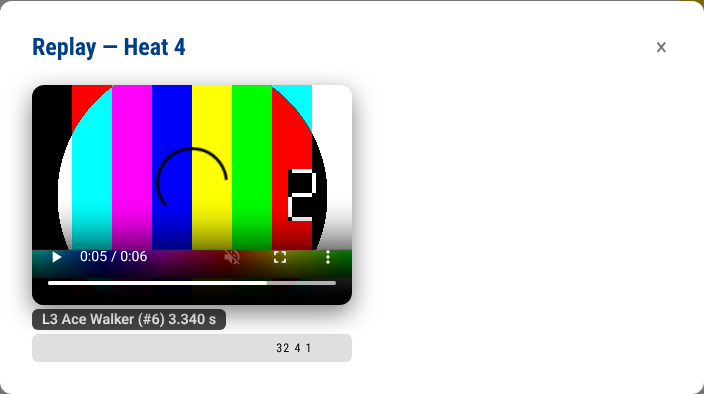 Clicking Lane 3's marker froze the clip there and printed its time — the
same strip appears under every replay, clickable only on a clip somebody
opened to look at.
Clicking Lane 3's marker froze the clip there and printed its time — the
same strip appears under every replay, clickable only on a clip somebody
opened to look at.
The last second before the first car crosses the line, through a moment after the last one does, plays at the display's own slow-motion rate automatically — the rest of the clip, including the lead-in, plays at normal speed. That is the "slow it down" the automatic replay already promised, aimed at the part of the clip actually worth slowing down rather than the whole thing.
These markers are placed from the timer's own times, not read off the picture — the camera's clock is corrected against the timer's to within about half a network round trip, and a video frame is roughly 1/30th of a second, so expect a marker within a frame or two of where a car actually crosses, not to the pixel. A car whose finish falls outside what a particular camera's clip actually captured (a second camera with a shorter buffer, say) simply gets no marker on that camera's own clip rather than one in the wrong place.
Keeping Clips Longer
By default a clip only exists long enough to play once, right after its heat: the moment the next heat starts, the old clip is gone. That is fine for watching the room, but it means nobody can go back and replay heat 12 after the fact.
System Settings → Advanced → Replays has a Keep replay clips checkbox that changes this. Turned on, a clip is kept — and every heat with one gets a small ▶ you can click on the Schedule tab or in Race Control's Previous Heats list to play it back, any time during the event.
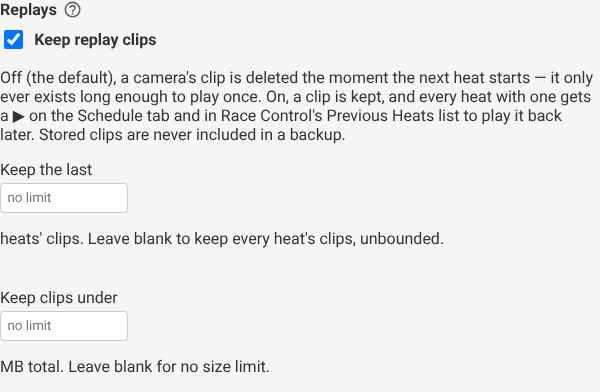 Keep replay clips, and the two ways to bound how many stick around.
Two optional limits go with it, and either, both, or neither can be set:
- Keep the last N heats' clips — once more than N heats have a clip, the oldest one's clip (and any camera's clip for it) is deleted to make room. Leave blank for no limit on heat count.
- Keep clips under N MB total — once the stored clips for a race pass this size, the oldest ones are deleted until the total is back under it. Leave blank for no size limit.
Leaving both blank keeps every clip for the whole event, unbounded — a real choice for a short event on a machine with plenty of storage, and one worth thinking about on a Raspberry Pi's SD card for a long one. A re-run heat keeps both its clips (the corrected run and the one it replaced) for as long as that heat itself is inside whichever bound is set — a re-run is history worth keeping, not a heat that should cost two slots. Deleting a heat or a round takes its stored clips with it, the same as the two retention limits above — nothing is left behind for a schedule change to serve back later.
Turning this on is not available on the public demo — it means writing a file to disk on every upload, the same reason the demo has no cameras at all (see Troubleshooting above).
Replaying an Earlier Heat
Once the setting is on and a heat has at least one clip, a ▶ appears next to it on the Schedule tab:
 Click it to open that heat's clip — or, with more than one camera,
choose which one first.
Click it to open that heat's clip — or, with more than one camera,
choose which one first.
Clicking it opens the same player a display uses, in a small window: muted, with a camera picker if more than one camera has a clip for that heat. Race Control's Previous Heats list offers the identical button for a heat that has just finished, without switching tabs.
A Note on Privacy
A stored clip is served the same way a racer's photograph already is: a web address with a long, unguessable name and no other gate on it, on any screen in the room including one nobody has typed an operator PIN into (see Roles and Permissions). That is deliberate and unchanged from the moment-of-broadcast case above — a video of the finish line is a video of children too, the same reasoning behind shortening a racer's name on public screens (see Race and track settings). Keeping a clip longer does not make it any more exposed than it already was in the seconds after it played; it just means the address stays live longer. Stored clips are never included in a backup — see Backups — so restoring one starts with no stored clips at all, whatever was kept before.
Highlights During a Break
Once stored clips are turned on and the race has at least one, taking a break offers a second option beside the duration and the label: Show replay highlights. Turn it on and every screen showing this race — not only the ones with their own Replays setting turned on — spends the break looping the current round's clips instead of the usual quiet preview of who races next.
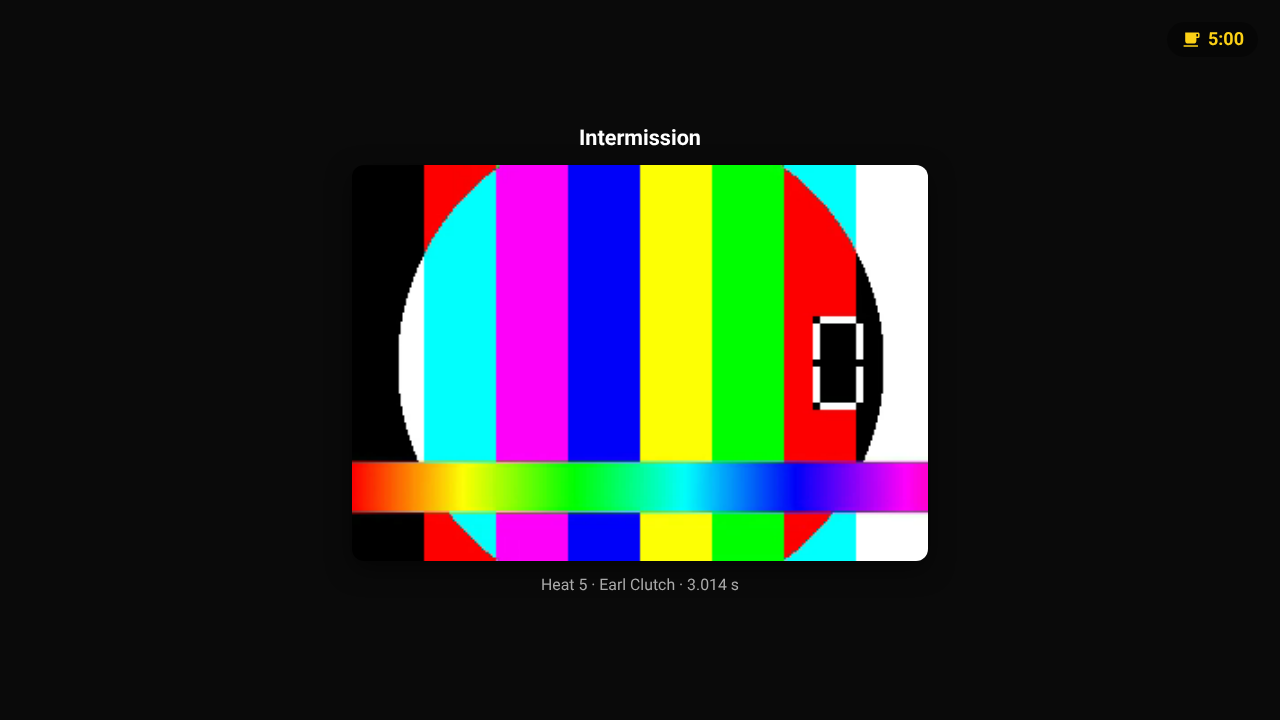 "Show replay highlights" is ticked by default whenever there is something
for it to play; the note underneath the checkbox says where to turn stored
clips on when there isn't.
"Show replay highlights" is ticked by default whenever there is something
for it to play; the note underneath the checkbox says where to turn stored
clips on when there isn't.
The clips play fastest time first, muted, at normal speed, one after another until the break ends — the same round-progress countdown stays in the corner the whole time, so the room still knows when racing picks back up. Each clip is captioned with the heat number, the winning car, and its time. A round with more than ten heats plays only the ten most recent rather than the whole afternoon.
If nothing has been stored for the current round yet — a break called before its first heat's clip has landed — the checkbox is still there, but the screen falls back to the ordinary next-up preview until a clip exists.
Race Control names what is playing on the break's own card ("Highlights: 8 clips from Round 2"), so the operator can tell at a glance whether the reel is worth the wait.
No Electronic Timer
A track running with No Timer (results typed in by hand) has no "the gate just opened" moment for a clip to anchor to. On a track like that, the camera instead cuts a fixed clip: about four seconds before the result is recorded, through a short follow-through after — the same shape DerbyNet uses for the same case. The camera's own status line says so: "no electronic timer — cutting a fixed clip around each result."
Aim for consistency rather than precision here — since the cut is not tied to an actual gate-open event, the same margin applies to every heat regardless of how long that particular heat actually took to run.
Browser Requirements
| Browser | Supported |
|---|---|
| Chrome, Edge (desktop or Android) | Yes |
| Safari 16.4 or later (macOS) | Yes |
| Safari 16.4+ and any iPhone/iPad browser (Chrome, Edge, Safari — all Safari's own engine on iOS) | Yes, via the canvas capture path — not yet verified on a physical iPhone; see #1294 |
| Firefox | No |
Every browser on iOS — Chrome, Edge, Safari, anything else the App Store offers — is Safari's own engine (WebKit) wearing a different name, so "switch browsers" is never the advice there. What actually distinguishes a supported iPhone or iPad from an unsupported one is its iOS version, not which app icon was tapped to get here.
The camera page checks this itself and says so plainly rather than failing partway through a heat — open it in an unsupported browser and it explains what to use instead before ever asking for camera permission. On an iPhone or iPad too old to support this feature at all, the message says to update iOS rather than naming a different browser, since no browser install would help.
A Note on HTTPS
A browser only allows a page to use the camera over a secure connection —
HTTPS, or a page served from the same machine (localhost). Trusty Track
serves HTTPS by default (see
HTTPS, certificates, and plain HTTP),
so this is normally nothing to think about. If HTTPS has been turned off
(TRUSTYTRACK_HTTP_ONLY), the camera page says so directly and names the
fix — either open the site on the computer actually running the server, or
turn HTTPS back on.
Troubleshooting
The camera page won't ask for permission / the preview stays black.
Check the browser is one of the supported ones above, and that the address
is reached over HTTPS (or is localhost) — both gates say so on the page
itself rather than failing silently.
A heat finished and nothing uploaded. Confirm the camera's status line names the right track — a camera listening to the wrong track never sees that track's results. If the status line says upload failed, it retries automatically on the very next result; check the device still has a network connection to the machine running Trusty Track.
The clip never plays on a display. Check that display's own Replays checkbox on the Displays panel is turned on. A display reconnecting (a reload, a dropped wifi connection) deliberately does not replay whatever heat was current when it reconnects — only a heat finished after it is back online.
The public demo has no cameras. Uploading a clip writes a file to disk with no credential attached, the same reason the demo refuses photo uploads — see The Public Demo.
What's Next?
- Observation & Audience Displays Guide — every other thing an audience screen can show
- Hardware Timer Guide — setting up the timer a replay's timing comes from